Administrator Guide
Advanced configuration and administrative tasks for TheiaCast
Table of Contents
User Management
Creating Users
TheiaCast supports multiple administrator accounts.
Creating a New User:
- Navigate to Users in the left sidebar (👥 Users)
- Click "Create User"
- Fill in user details:
- Username (required)
- Email (optional)
- Display Name (optional)
- Password (minimum 6 characters)
- Role (any built-in or custom role)
- Click "Create User"
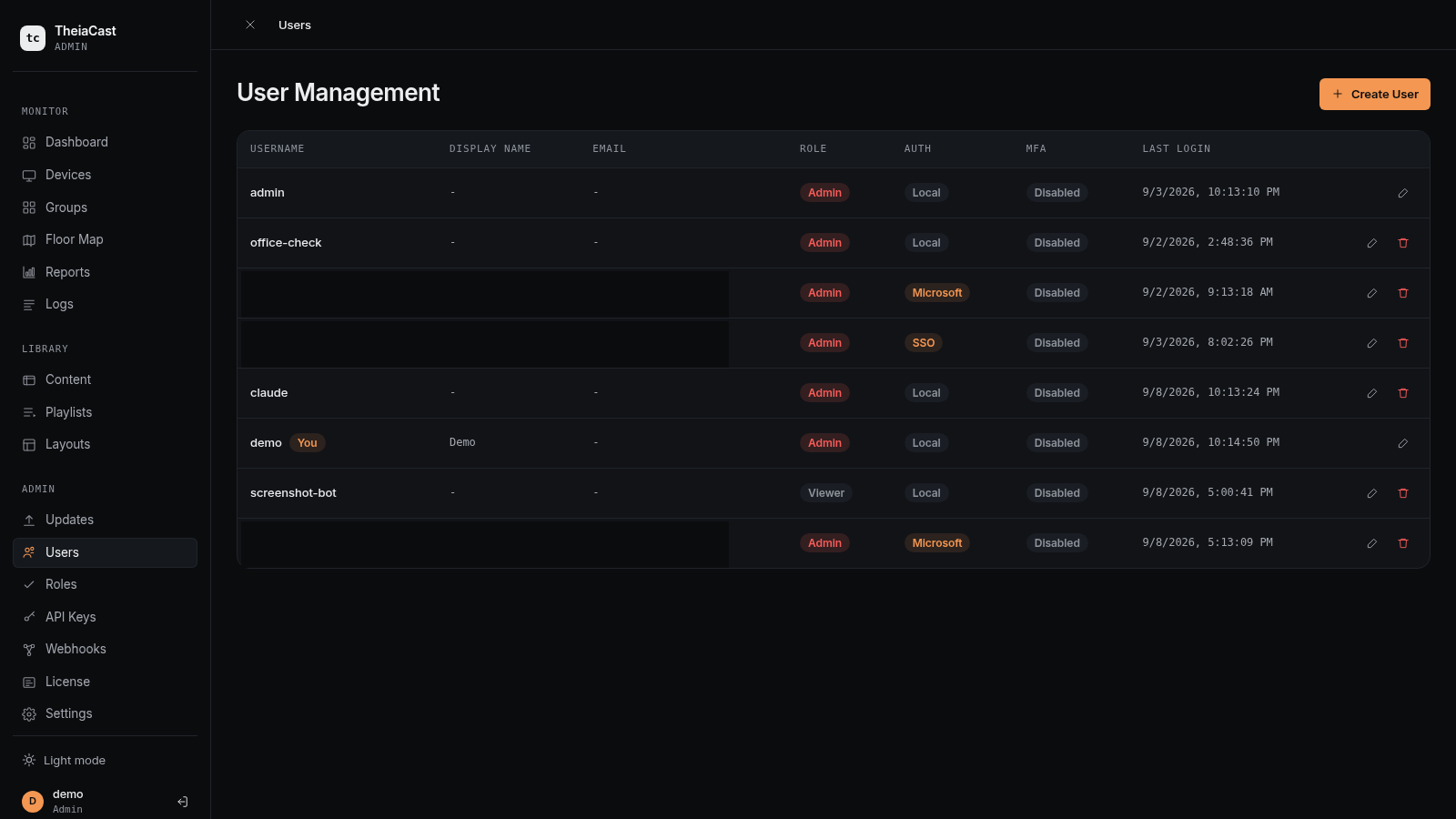
Note: TheiaCast has role-based access control today. Three built-in roles ship with every install — Admin (full access), Operator (devices, content, and playlists; no Users, Roles, API Keys, Webhooks, License, or Settings), and Viewer (read-only) — and you can also create custom named roles scoped to specific device groups and/or content folders.
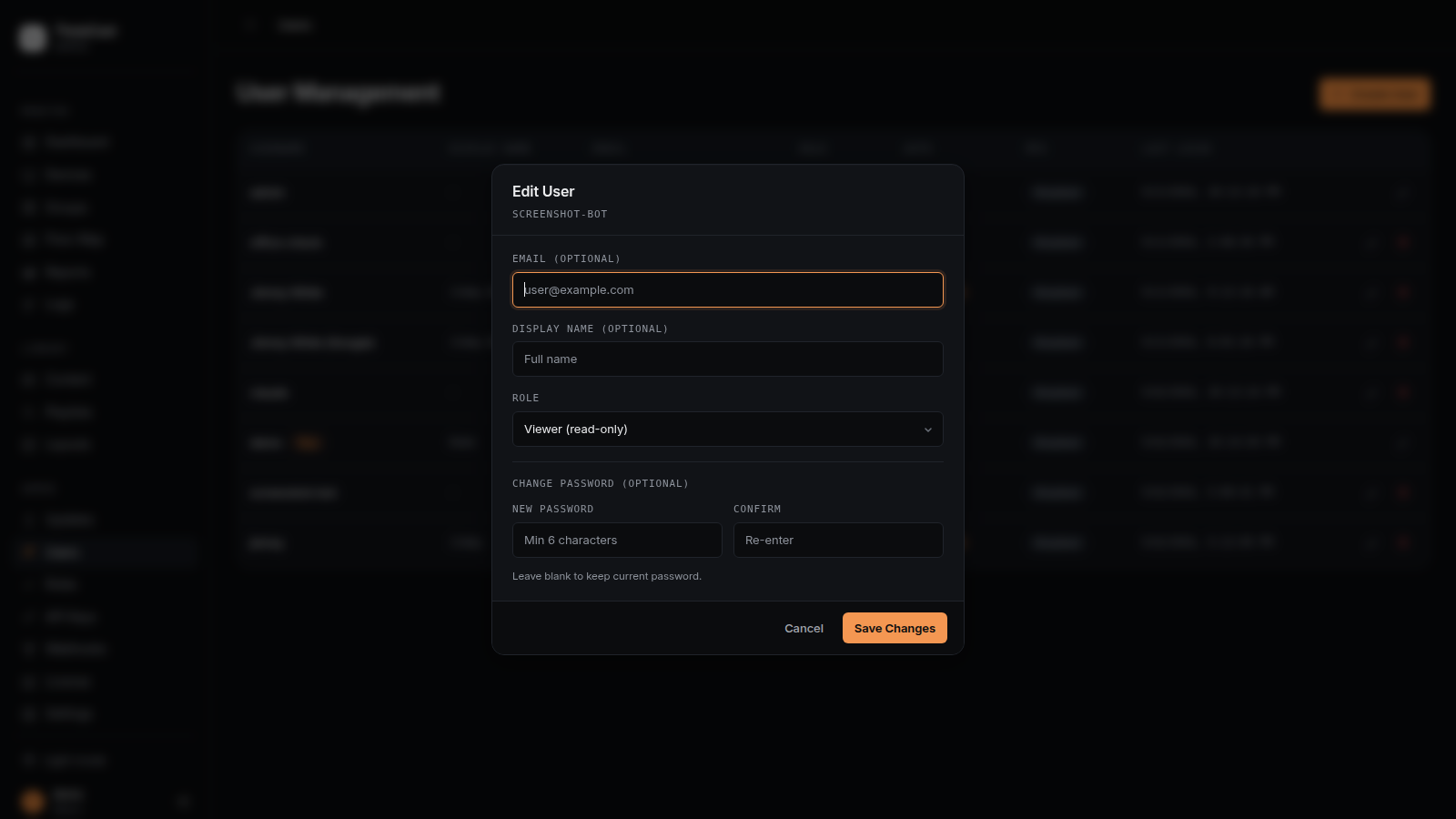
Editing User Details
- Navigate to Users in the left sidebar (👥 Users)
- Find the user in the list
- Click "Edit"
- Modify details (username, email, display name)
- Click "Save"
Deleting Users
- Navigate to Users in the left sidebar (👥 Users)
- Find the user in the list
- Click "Delete"
- Confirm deletion
Warning: You cannot delete yourself.
Password Reset
For Your Own Account:
Users can change their own password using the /auth/change-password API endpoint.
For Other Users:
Admins can edit users and set new passwords via the Edit User modal.
System Settings
Open ⚙️ Settings in the left sidebar. Settings is a set of sections reached from a left-hand rail, not one long page — each section is its own URL (/settings/account, /settings/authentication, and so on), so a direct link to a section works and browser back / forward moves between them.
Changes are held as a draft. A sticky bar at the bottom of the page shows how many unsaved changes exist, with Discard and Save changes buttons — nothing is written until you click Save. Leaving a section (or closing the tab) with unsaved changes prompts first. The Save button only enables once a field actually differs from the saved value.
1. Account & Security
- Language — each admin picks the interface language independently. This is a per-browser preference (stored locally, like dark / light mode), not an organisation-wide setting. Translations beyond English are machine-generated and have not been professionally reviewed.
- Two-Factor Authentication — scan a QR code with an authenticator app and confirm the 6-digit code; MFA is then required on every future login for that account.
- Change Password — requires the current password plus a new one (minimum 6 characters).
2. Authentication
Controls how admins sign in. Four independent methods can be enabled at once — Local (username / password), Microsoft Entra ID, a generic OIDC / SSO provider (Okta, Keycloak, Google Workspace, …), and SAML 2.0 (ADFS, legacy on-prem directories that don’t speak OIDC). Each has its own enable switch and, when on, its own credential fields (Client ID, Tenant / Directory ID, Issuer URL for Entra/OIDC; an IdP metadata URL with a one-click Fetch for SAML; and a default role for auto-provisioned accounts on every method).
⚠️ Disabling all methods at once locks every admin out — the page warns before letting that happen. Full identity-provider walkthroughs, including SAML and AD FS, are in the Enterprise Setup & SSO guide.
3. Notifications & Alerts
- Email & Alerts — SMTP configuration for outbound email. Pick a provider preset (Gmail, Microsoft 365, SendGrid, …) or a custom host / port, then an authentication mode: plain password, Microsoft 365 — Graph API (the only supported way to send via a Microsoft 365 mailbox), or a Google service account. Device Offline Alerts live in the same card and use the same configuration — see Email & Alerts below.
- Emergency Alerts (CAP) — polls a Common Alerting Protocol feed and can auto-broadcast qualifying alerts. See Monitoring & Reporting → Emergency alerts.
4. Content & Retention
- Content Approval Workflow — when enabled, new or edited content must be submitted and approved before it can go into a playlist.
- Log Retention — how long system / audit logs are kept before automatic cleanup (1–365 days).
- Proof of Play Retention — how long playback records are kept (30–730 days). Export to CSV first if you need a longer history — deleted records cannot be recovered.
5. AI
Bring your own AI provider — OpenAI, Anthropic, or any OpenAI-compatible endpoint — to unlock “Write with AI”, AI background-image generation, AI-suggested image alt text, and the AI Starter Playlist wizard across the app. Nothing AI-related is shown anywhere in the UI, and no content is ever sent to any provider, until a provider is configured and saved here — there is no shared or metered TheiaCast key. See the full AI-Enabled Signage guide for what each AI feature does.
6. Branding
Custom logo and primary colour, applied across the admin UI. Requires a paid licence tier — a free-tier install sees a message explaining this instead of the form. Details in Branding Customization below.
7. Certificates, Backup & Updates
Upload a custom TLS certificate (a PEM / CRT / CER certificate fileand a PEM / KEY private key file as two separate uploads — not a combined PFX bundle), create or restore a full configuration backup, and (Docker deployments) update the server itself from the UI. See SSL Certificate Management, Backup and Recovery, and Server Self-Update below.
Email & Alerts
Configure outbound email and device-offline notifications under ⚙️ Settings → Email & Alerts. TheiaCast sends mail only for alerts you enable here — there is no other outbound email.
Device Offline Alerts
Recipients:
One or more email addresses that receive offline notifications.
Offline Threshold:
- How long a device must be silent before an alert is sent
- Acts as a debounce — brief reconnects never alert
- One email per outage; the device is not re-alerted until it recovers and drops again
Alert state is held in memory. After a backend restart every device looks offline until it reconnects; the threshold suppresses that startup burst rather than emailing about it. If a send fails, the outage is not marked as alerted — it retries on the next check.
Choosing a Send Method
Three authentication modes are available. All secrets (SMTP passwords, OAuth client secrets) are encrypted at rest and never returned by the API — the settings form shows only whether a secret is stored, and leaving the field on its placeholder keeps the existing value.
1. SMTP (password auth):
- Provider presets fill host, port, and security for Gmail, Google Workspace, Microsoft 365, Outlook.com, Yahoo, iCloud, Zoho, Fastmail, and relays (SendGrid, Mailgun, Postmark, SES, Brevo)
- Most mailbox providers no longer allow plain password SMTP: Gmail needs a 16-character App Password; Microsoft 365 needs SMTP AUTH enabled per mailbox; Google Workspace often allows neither. Each preset states its own requirement.
- Dedicated relay services are unaffected by these restrictions
2. Microsoft Graph (recommended for Microsoft 365):
- Uses
POST /users/{mailbox}/sendMailwith theMail.Sendapplication permission - No SMTP AUTH, no Exchange PowerShell service-principal setup, and it works where outbound port 587 is blocked — setup is two Entra steps
- Use a licence-free shared mailbox as the sender identity (e.g.
[email protected])
Security trade-off
By default Mail.Send lets the app send as any mailbox in the tenant. Scope it with New-ApplicationAccessPolicy targeting a mail-enabled security group (with your shared mailbox as a member — a shared mailbox address is not a valid policy scope on its own). Verify with Test-ApplicationAccessPolicy against both an allowed and a denied mailbox. Policy changes can take up to 24 hours to apply, so a 403 immediately after creating one is usually propagation, not misconfiguration.
3. Google Workspace (OAuth 2.0 service account):
- App-only authentication — no interactive sign-in, and nothing to re-authorize periodically
- Requires a service account with domain-wide delegation for the
https://mail.google.com/scope, impersonating the sending mailbox - This is what Google is keeping as it withdraws plain-password SMTP for Workspace accounts
Testing
Use the Send Test Email button after saving. Failures are reported with the specific fix (App Password required, basic auth disabled, missing service principal / mailbox permission, wrong tenant or client, port or security mismatch, DNS/firewall) rather than a raw server response.
Branding Customization
Branding customization is available on paid tiers only.
Customizing Logo
- Navigate to Settings → Branding
- Click "Upload Logo"
- Select image file:
- Supported formats: PNG, SVG (recommended), JPG
- Recommended size: 200x50 pixels
- Maximum file size: 2MB
- Click "Save"
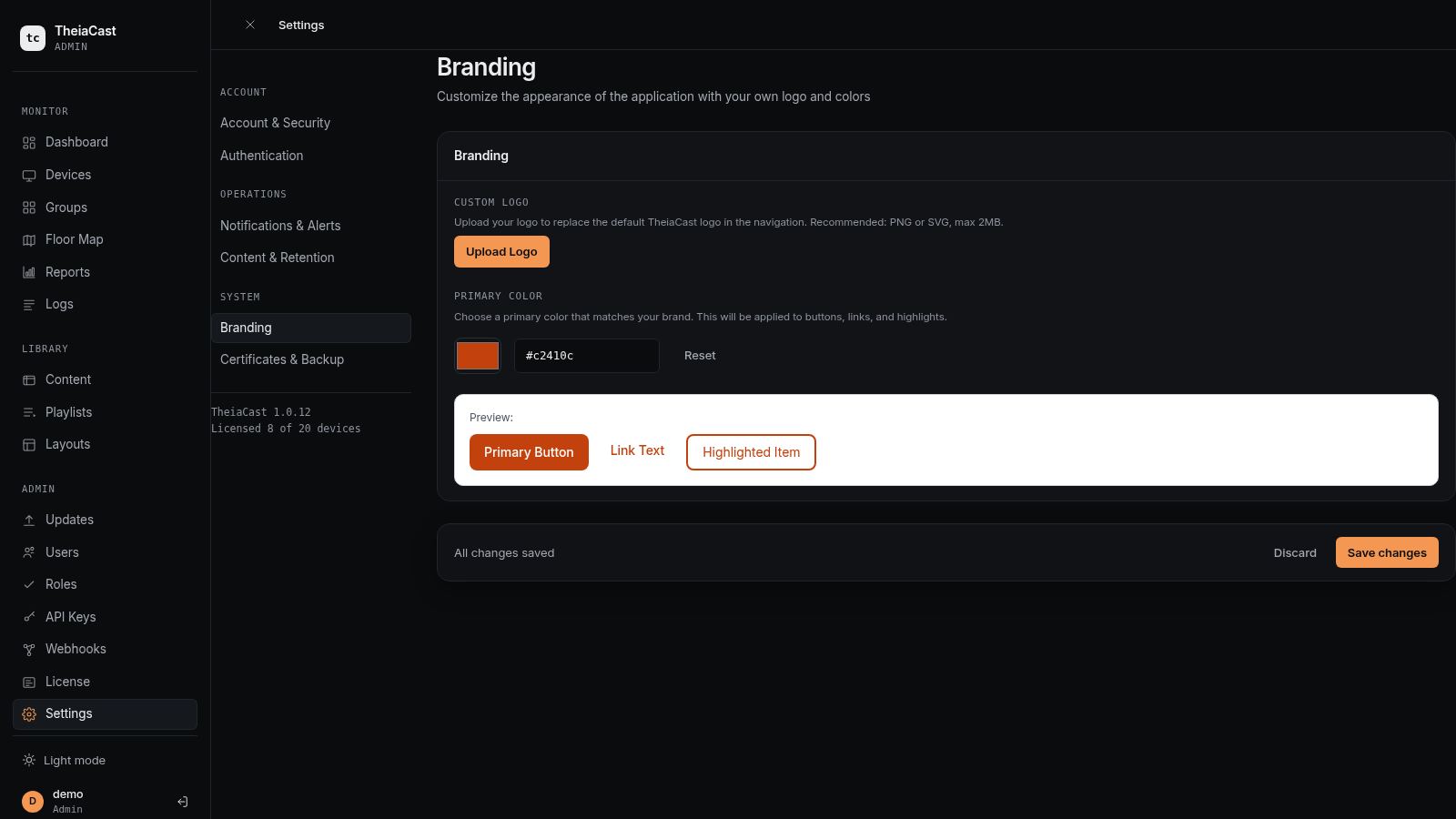
Your logo will appear:
- In the top-left corner of the dashboard
- On the login page
- In device client displays (if configured)
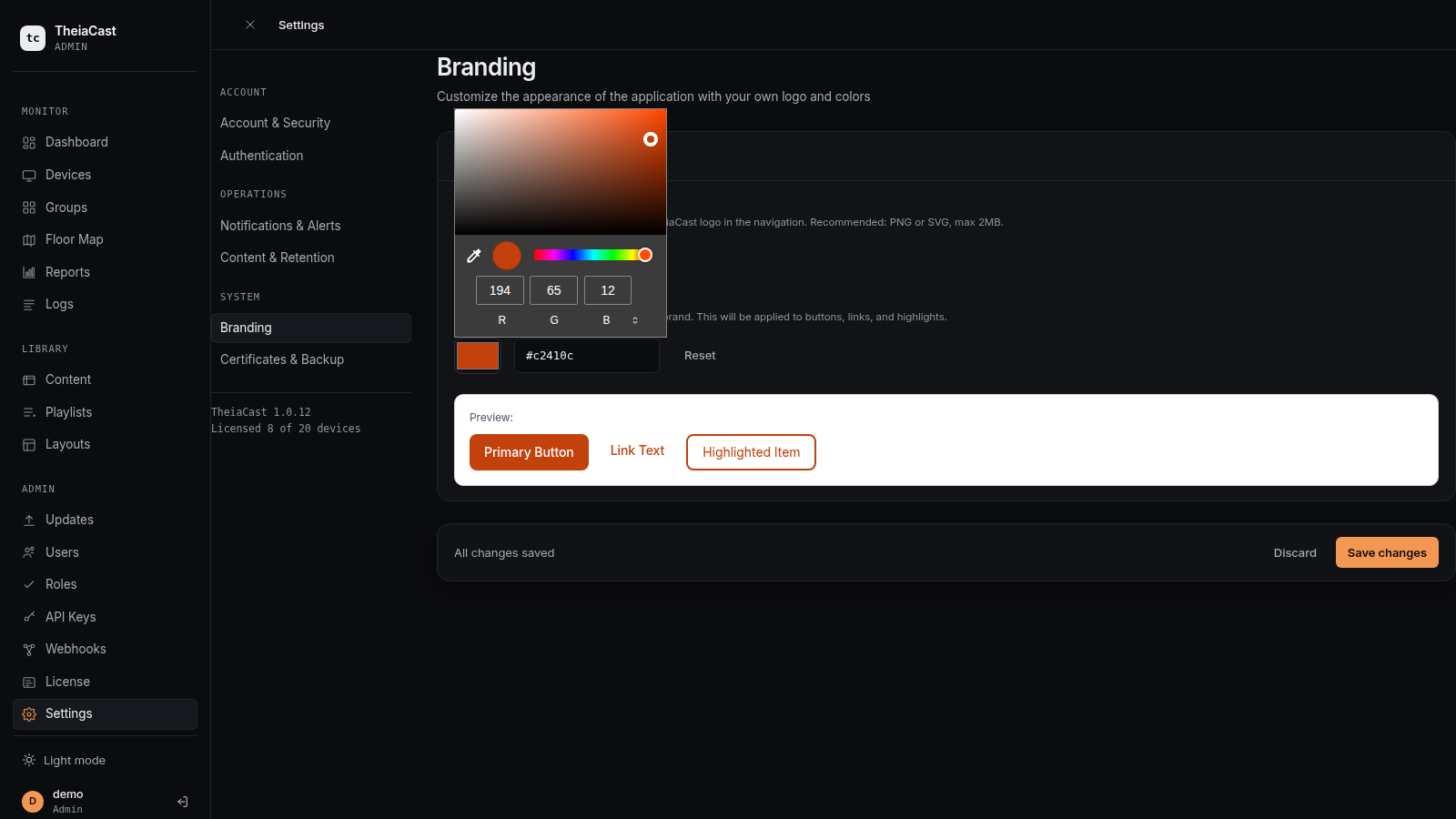
Customizing Colors
- Navigate to Settings → Branding
- Choose a Primary Color using the hex color picker — there is a single primary color field, no separate secondary or accent color
- Preview changes in real-time
- Click "Save"
SSL Certificate Management
TheiaCast supports custom SSL certificates for HTTPS connections.
Uploading SSL Certificate
Prerequisites:
- Certificate file (PEM/CRT/CER)
- Private key file (PEM/KEY)
These are two separate uploads, not a combined PFX bundle.
Steps:
- Navigate to Settings → Certificates & Backup
- Click "Upload Certificate"
- Select files:
- Certificate file
- Private key file
- Click "Upload and Apply"
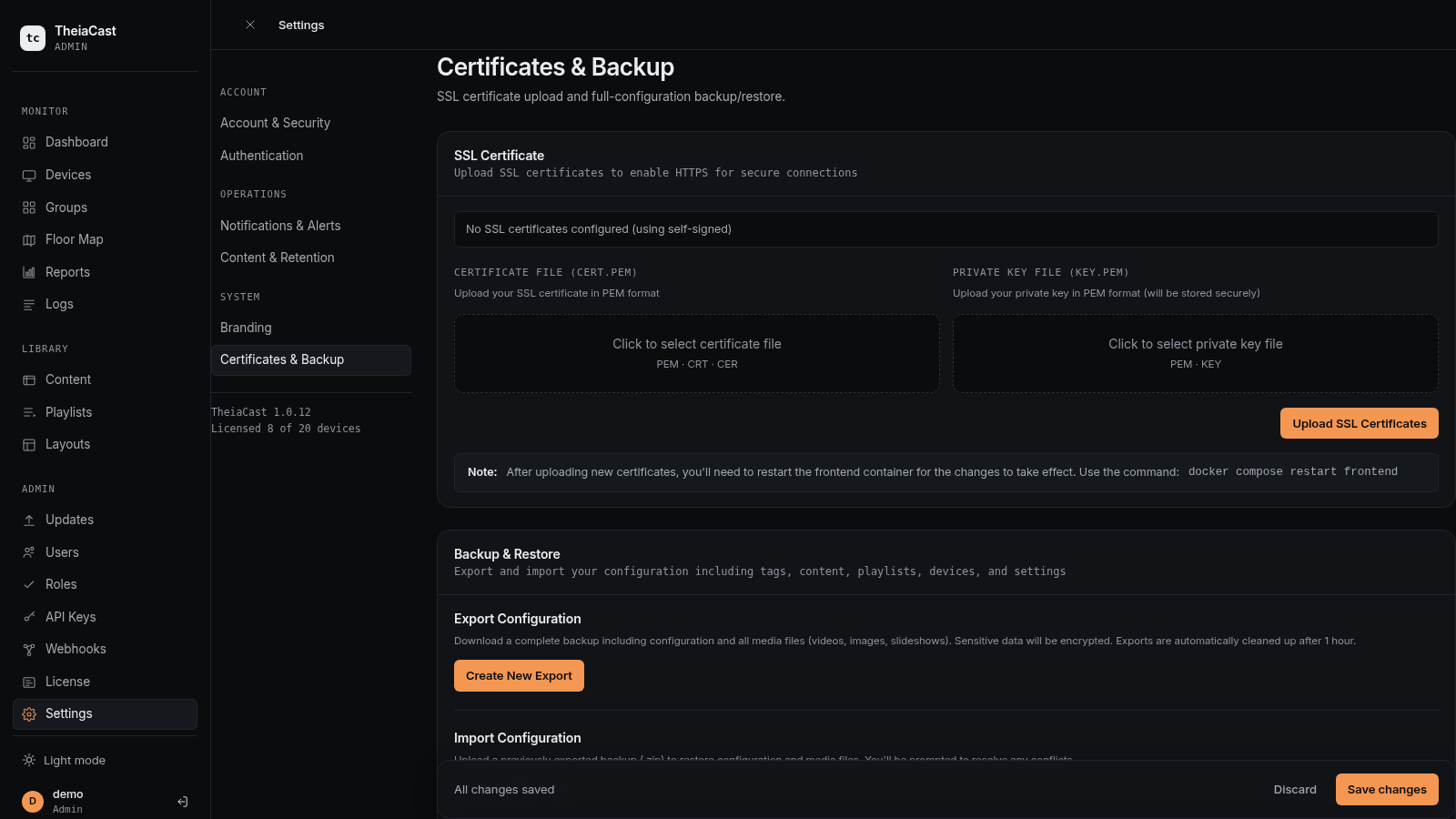
Restart the frontend container manually to apply the new certificate — this does not happen automatically.
Certificate Status
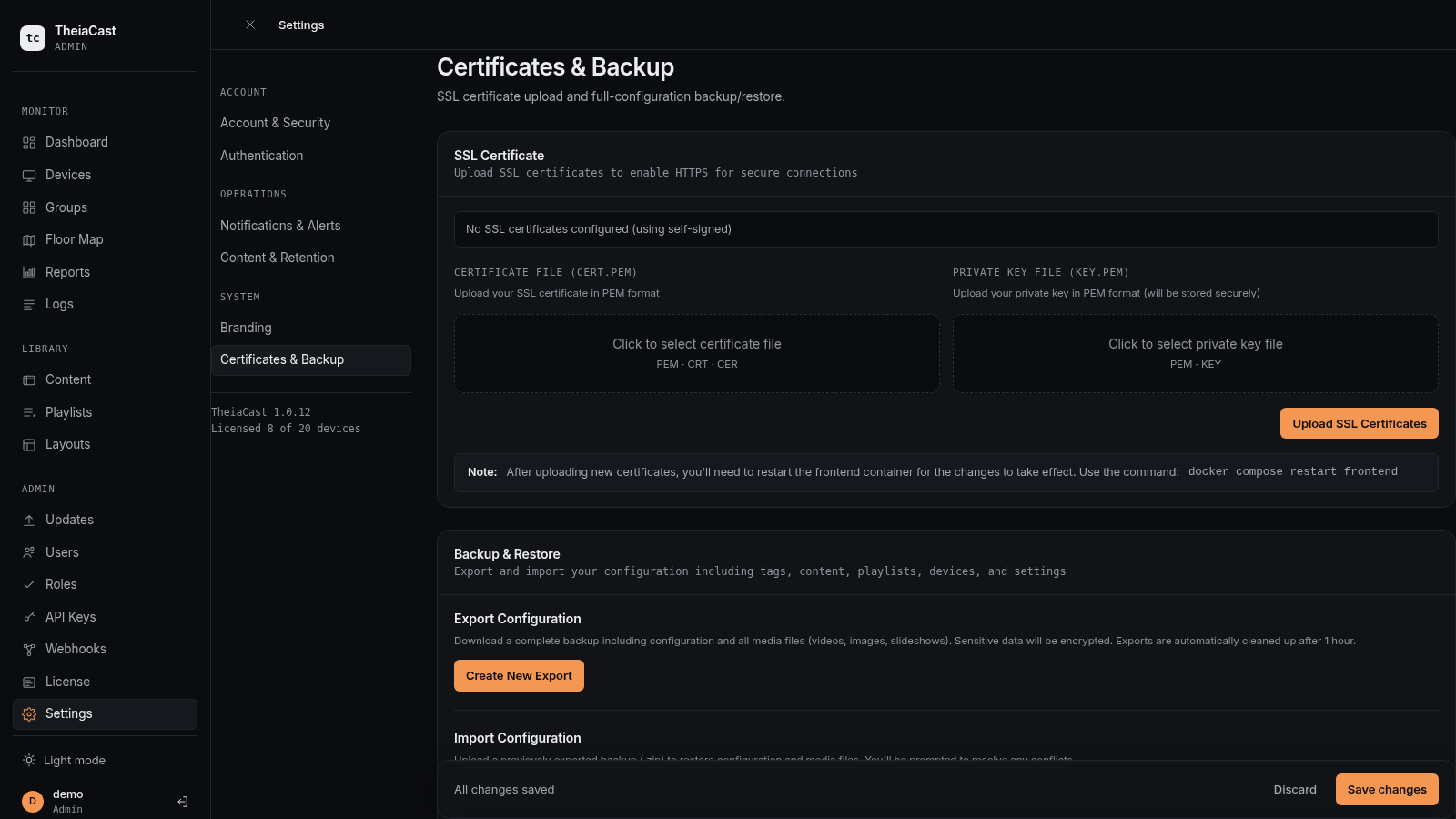
The SSL section shows:
- Current certificate: Domain name and issuer
- Expiration date: When certificate expires
- Days remaining: Visual indicator (red if <30 days)
Let's Encrypt Integration (Coming Soon)
Automatic SSL certificate generation and renewal via Let's Encrypt will be available in a future update.
License Management
License Tiers
Almost every feature of TheiaCast is available on every plan, free and paid alike. Upgrading only buys two things: more registered devices (beyond the 3-device free limit) and Custom Branding. Licences are additive — two Pro-10 keys give 20 devices total.
| Plan | Max Devices | Custom Branding | Everything Else (SSL Upload, Remote Control, Playlists, Floor Map, MFA, Backup/Restore, etc.) |
|---|---|---|---|
| Free | 3 | ❌ | ✅ |
| Pro-1 | +1 | ✅ | ✅ |
| Pro-5 | +5 | ✅ | ✅ |
| Pro-10 | +10 | ✅ | ✅ |
| Pro-20 | +20 | ✅ | ✅ |
| Pro-50 | +50 | ✅ | ✅ |
| Pro-100 | +100 | ✅ | ✅ |
| Enterprise | Unlimited | ✅ | ✅ |
There is no separate per-tier user limit and no gating of any feature besides device count and Custom Branding.
Viewing Current License
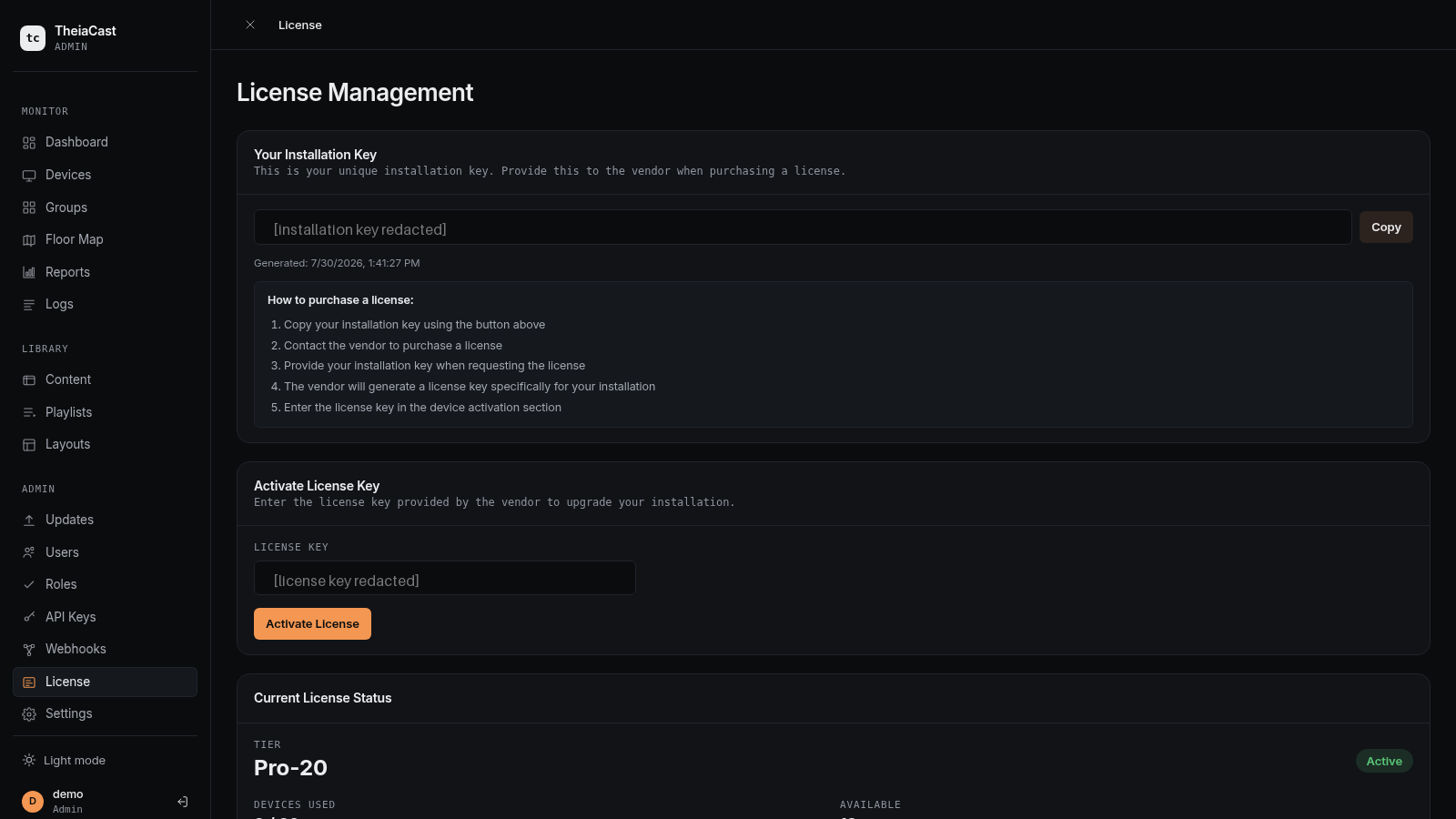
- License in the left sidebar — a top-level page, not under Settings
- View license details:
- Current tier
- Licensed devices (used / max)
- Expiration date (Subscription licenses only — Perpetual licenses never expire)
- Installation Key and Activate Licence Key form
Upgrading License
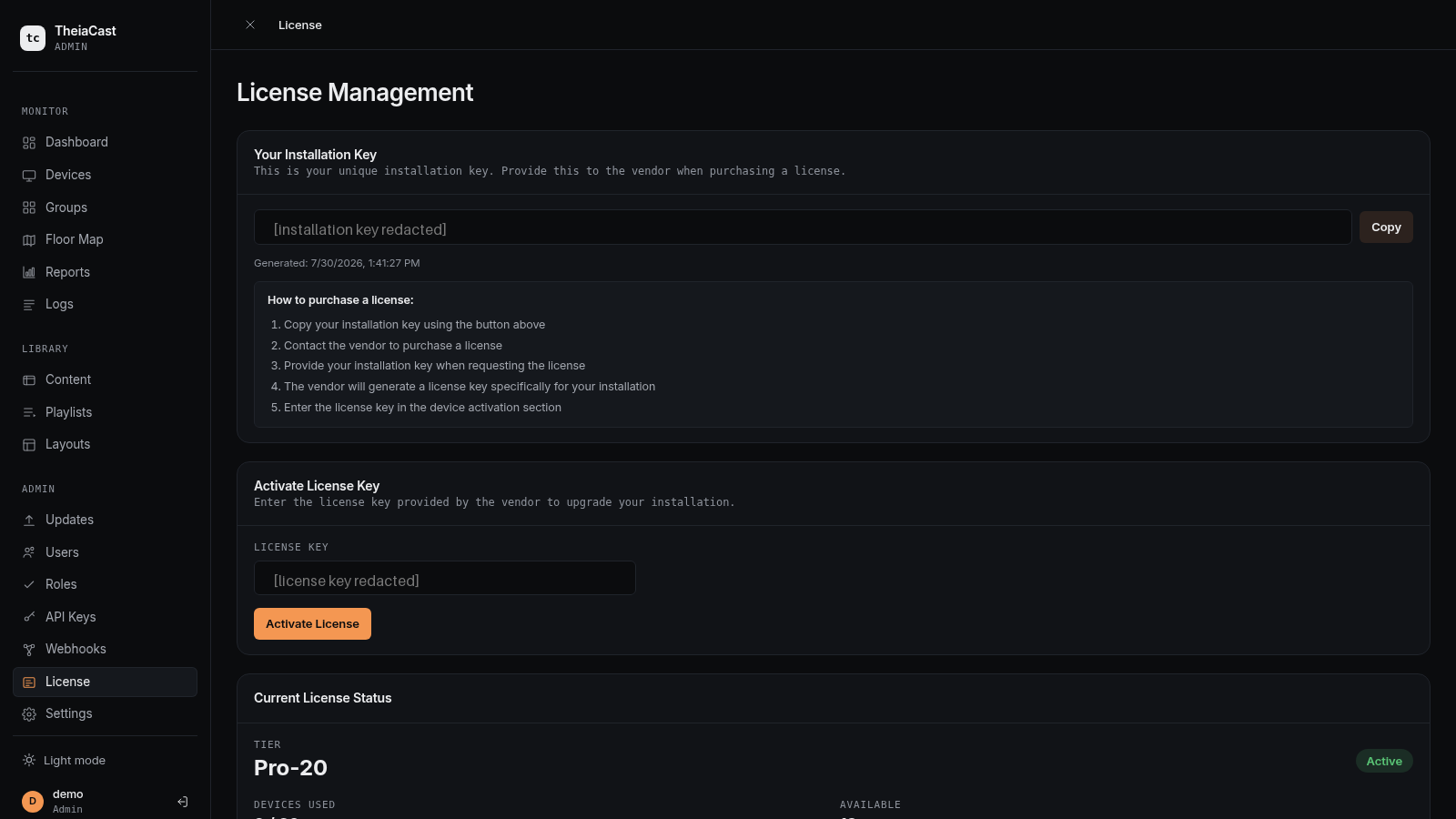
- Navigate to License in the left sidebar
- Copy the Installation Key shown on the page (unique to your TheiaCast server)
- Contact TheiaCast or your reseller, providing the Installation Key, to get a licence bound to your server
- Receive a license key by email
- Paste it into "Activate License Key" and click Activate
Device limit increases and Branding unlocks immediately — no restart needed. There is no in-app "Upgrade" button or tier picker.
License Expiration
Only Subscription licenses expire — Perpetual licenses never do. When a Subscription license expires:
- New device registrations are blocked
- Branding re-locks to the default TheiaCast logo/colour
- Existing devices, content, and data are untouched — nothing is deleted or deactivated
If you go over your device limit (e.g. a license lapses while devices exceed the Free-tier count), a 7-day grace period begins during which all devices keep working; after 7 days without resolving it, new device registrations are blocked (existing devices continue to work).
Database Management
Database Configuration
TheiaCast uses PostgreSQL as its database backend.
Connection String:
Set via the ConnectionStrings__Default environment variable in docker-compose.yml:
ConnectionStrings__Default=Host=postgres;Port=5432;Database=theiacast;Username=postgres;Password=your-password
Viewing Database Size
- SSH into the server
- Run command:
docker exec -it theiacast-postgres psql -U postgres -d theiacast -c "SELECT pg_size_pretty(pg_database_size('theiacast'));"Database Maintenance
Automatic Maintenance:
- Entity Framework Core handles schema migrations automatically on startup
- No manual migration steps required for updates
Manual Vacuum (Performance):
docker exec -it theiacast-postgres psql -U postgres -d theiacast -c "VACUUM ANALYZE;"
Run this monthly to optimize database performance.
Cleaning Old Data
Screenshots:
Screenshots and thumbnails are cleaned up automatically and are never included in a configuration backup. There is no user-facing retention control for them — to reclaim space immediately, prune the table directly, as with Device Logs below.
Device Logs:
Device logs are retained indefinitely. To clean old logs:
# Delete logs older than 90 days
docker exec -it theiacast-postgres psql -U postgres -d theiacast -c "DELETE FROM \"DeviceLogs\" WHERE \"Timestamp\" < NOW() - INTERVAL '90 days';"
Security Best Practices
Password Requirements
Passwords have a flat 6-character minimum. There is no configurable complexity policy (no required uppercase, numbers, or special characters) and no "Settings → Security" route.
Multi-Factor Authentication (MFA)
Enabling MFA for Your Account:
MFA can be enabled using the following API endpoints:
POST /auth/mfa/setup- Get QR code- Scan QR code with authenticator app (Google Authenticator, Authy, etc.)
POST /auth/mfa/enable- Confirm with verification code
Disabling MFA:
POST /auth/mfa/disable - Disable MFA for current user
Note: UI for MFA management is available in the settings interface.
Device Token Security
Token Rotation:
Device tokens should be rotated periodically for security.
- Navigate to Devices
- Flip device card
- Click "Rotate Token"
- Copy new token
- Update device client
.envfile - Restart device client
Auto-Rotation Policy (Coming Soon): Automatic token rotation every 90 days.
Network Security
Firewall Configuration:
- Expose ports 80 (HTTP) and 443 (HTTPS) to the public internet for the admin UI and device connections
- If you use Teams Relay, also forward port 1935 (RTMP) to the host — that’s the port Microsoft Teams’ Custom Streaming app publishes the meeting to. Not needed if you never use Teams Relay.
- Keep port 5432 (PostgreSQL) internal only
- Use VPN or SSH tunnel for administrative database access
Reverse Proxy:
Use nginx or similar reverse proxy for additional security:
- Rate limiting
- DDoS protection
- SSL termination
- Request filtering
Outbound Connections:
If an AI provider is configured (Settings → AI), the backend makes outbound HTTPS calls to whichever endpoint you set there — OpenAI, Anthropic, or your own generic/proxy URL — only when an admin actually uses an AI feature. No AI traffic is ever routed through TheiaCast’s own infrastructure or any shared/default endpoint. The same applies to any configured SMTP server and Emergency Alerts (CAP) feed URL — all outbound, all only to hosts you explicitly configure.
Advanced Troubleshooting
Viewing Server Logs
Docker Deployment:
# Backend logs
docker-compose logs -f backend

# Frontend logs
docker-compose logs -f frontend

# Database logs
docker-compose logs -f postgres

# All logs
docker-compose logs -f
Manual Deployment:
- Backend logs: Check application output or system journal
- Frontend logs: Check nginx error logs
Enabling Debug Logging
Backend log verbosity is a Serilog setting on the backend container, not a UI toggle. Raise it by adding a minimum-level environment variable to the backend service in docker-compose.yml and recreating the container:
# in the backend service's environment:
- Serilog__MinimumLevel__Default=Debug

docker compose up -d backend
Warning: Debug logging is verbose. Revert to Information after troubleshooting. If you’re not sure which level to set for a given issue, email [email protected].
WebSocket Connection Issues
Symptoms:
- Devices showing as offline when they should be online
- Real-time updates not appearing in dashboard
- Screenshot thumbnails not updating
Troubleshooting:
1. Check WebSocket endpoint:
# Test WebSocket connection
curl -i -N -H "Connection: Upgrade" -H "Upgrade: websocket" http://your-server:5001/ws
2. Check reverse proxy configuration:
- Ensure WebSocket upgrade headers are passed through
- nginx example:
location /ws {
    proxy_pass http://backend:8080/ws;
    proxy_http_version 1.1;
    proxy_set_header Upgrade $http_upgrade;
    proxy_set_header Connection "upgrade";
}
3. Check firewall:
- Ensure port 5001 (or your configured port) is open
- Check for WebSocket-specific firewall rules
Device Not Connecting
Symptoms:
- Device shows as offline immediately after registration
- Device client logs show connection errors
Troubleshooting Steps:
1. Verify device token:
# In device client .env file
DEVICE_TOKEN=<correct-token>
2. Verify server URL:
# Should NOT include /ws path
SERVER_URL=http://your-server:5001
3. Check device client logs:
# Windows
Get-Content "C:\Program Files\TheiaCast Client\logs\client.log" -Tail 50 -Wait

# Raspberry Pi / Linux
sudo journalctl -u theiacast-client -f
4. Test network connectivity:
# From device, test HTTP
curl http://your-server:5001/health

# Should return: {"status":"healthy"}
Playlist Not Updating on Device
Symptoms:
- Assign playlist to device in dashboard
- Device continues showing old content
Troubleshooting:
1. Check device connection:
- Device should show green "Online" status
- If offline, device is not receiving updates
2. Check WebSocket events:
- Enable debug logging
- Look for
content:updateevent in device client logs
3. Manual refresh:
- Flip device card → Click "Refresh Page"
- Or use Remote Control to navigate
High CPU Usage
Symptoms:
- Backend container using high CPU
- Slow dashboard performance
Possible Causes:
1. Retained history is large:
- Shorten Log Retention / Proof of Play Retention (Settings → Content & Retention)
- Prune old screenshots / device logs directly (see Database Management → Cleaning Old Data)
2. Too many devices:
- Check if you've exceeded license tier device limit
- Consider upgrading license
3. Database query performance:
- Run manual VACUUM (see Database Maintenance section)
- Check for missing indexes (should be automatic)
4. Memory leak:
- Restart backend container
- Report the issue to [email protected]
502 Bad Gateway After an Update or Backend Restart
Symptoms:
Admin UI loads but shows 502 Bad Gateway errors, or the page works except API calls.
Cause & Resolution:
nginx cached the backend container’s IP at startup; a recreated backend got a new IP. Current frontend images re-resolve the backend per request via Docker DNS, so this can’t happen after updating past the fix - see Server Self-Update, which also restarts the frontend automatically at the end of an update on older images. If you ever see it manually: docker restart theiacast-frontend.
Login Screen Shows Only a Username/Password Form, or “Cannot reach the server”
Symptoms:
After an update, the login page shows the local form with no SSO buttons, or an unreachable-server message.
Cause & Resolution:
The backend is still restarting - the page couldn’t fetch auth settings. Wait ~30s and reload. Local login while the form is visible is still enforced server-side: if local sign-in is disabled the login is rejected even if the form was shown.
Performance Optimization
Server Performance
Recommended Specifications (by number of devices):
| Devices | RAM | CPU | Storage |
|---|---|---|---|
| 1-10 | 2GB | 2 cores | 20GB |
| 11-50 | 4GB | 4 cores | 50GB |
| 51-100 | 8GB | 8 cores | 100GB |
| 100+ | 16GB+ | 16+ cores | 200GB+ |
Optimization Tips:
1. Trim retained history:
- Settings → Content & Retention → Log Retention / Proof of Play Retention
- Shorter windows mean fewer rows for the hourly cleanup job to hold and scan
- Export any history you need to keep first — deleted records can’t be recovered
2. Clean up unused media:
- The Unused filter on the Content page shows every item with zero current playlist references
- Storage usage is broken down by content type at the top of the Content page, so you can see where space is actually going
There is no built-in external-CDN offload for video — uploaded content is served from your own TheiaCast server/storage. Referencing an externally-hosted video URL as generic Web/URL content is possible, but it skips the duration probing, mute/loop handling, and playback lifecycle events a real video upload gets, so it isn’t a supported substitute.
3. Tune the database connection pool:
- Pooling is on by default (100 connections)
- Raise it by editing
ConnectionStrings__Defaultindocker-compose.yml:
ConnectionStrings__Default=Host=postgres;...;Maximum Pool Size=200
Client Performance
Raspberry Pi Optimization:
1. Use H.264 video codec:
- Most efficient for Raspberry Pi hardware decoding
- Avoid VP9, AV1 (no hardware support)
2. Limit video resolution:
- 1080p maximum for Raspberry Pi 4
- 720p for Raspberry Pi 3
3. Disable unnecessary features:
- Reduce screenshot quality (lower JPEG quality)
- Increase screenshot interval
Windows Client Optimization:
1. Use hardware acceleration:
- Enabled by default in Puppeteer
- Ensure GPU drivers are up to date
2. Close other applications:
- Dedicated kiosk devices should run client only
Server Self-Update
Docker deployments can update the server’s own containers from ⚙️ Settings → System → Software updates — no SSH required. An admin sees the running version, the latest GitHub release, whether an update is available, and can apply it from the UI.
How it works
A small updater sidecar container (theiacast-updater) is the only container that gets the Docker socket — it’s never exposed to the backend, the frontend, or the network. The backend delegates to it over an internal HTTP API protected by a shared token. Clicking Update now runs, in order:
- Dumps the database to
backups/pre-update-<timestamp>.sqlnext to your compose file. - Snapshots
docker inspectof the managed containers plus a copy of the SSL certs tobackups/— forensics if an update changes something unexpectedly. - Drift check — compares the running containers’ env/mounts against the resolved compose file and warns if the recreate would drop or change something (e.g. an env var exported in a shell but never written to
.env). - Refreshes the compose file from the release tag when it can reach raw.githubusercontent.com (best effort; skipped if unreachable).
- Pulls the release images and recreates
backend+frontend, then restarts the frontend so nginx re-resolves the backend’s new container IP.
The page shows a blocking spinner until the recreated backend answers again — expect the UI to drop briefly mid-update. If the update fails, the exact compose error is shown in the card.
Requirements
- A Docker Compose deployment running the GHCR images (
ghcr.io/jimmyeao/theiacast-*). Locally built*:localimages can’t be pulled from a registry — the update still runs the backup/recreate cycle, but nothing actually changes. UPDATER_TOKENset in the.envnext to your compose file (generate withopenssl rand -hex 32), theupdater:service in the compose file, andUpdater__BaseUrl/Updater__Tokenon the backend. Without this the card shows “Self-update is not configured”.- If your Postgres database or container isn’t named
theiacast, setUPDATER_DB_NAME/UPDATER_DB_CONTAINERon the updater service. COMPOSE_PROJECT_NAMEmust match the running compose project (docker inspect theiacast-backend --format '{{index .Config.Labels "com.docker.compose.project"}}'tells you).
Keep ALL env in .env. Compose variable substitution happens wherever docker compose runs, including inside the updater — a variable that only exists in an interactive shell (e.g. SSL_CERT_PATH exported before a manual up) is invisible to the updater and resolves to its default on update, which can remount a different host directory.
Manual fallback: docker compose pull backend frontend && docker compose up -d still works from SSH, and the pre-update dumps in backups/ are plain pg_dump output restorable with psql.
Checking for updates manually: the card’s Check for updates compares the digest of GHCR’s :latest backend image against the running container’s image digest — it reports “up to date” truthfully even when the version numbers match but the image drifted.
Backup and Recovery
Backup Strategy
What to Backup:
1. Database (Critical):
- Contains all devices, content, playlists, users, settings
- Backup daily at minimum
2. Media Files (Important):
- Uploaded images, videos, presentations
- Located in Docker volume:
theiacast_media
3. Configuration Files (Important):
docker-compose.yml.envfiles- SSL certificates (if uploaded) — also included automatically in Settings export backups (inside
ssl-certs/in the encrypted archive) and snapshotted by the Server Self-Update updater before each update, so a lost cert directory is recoverable without a manual backup of its own
Database Backup
Manual Backup:
# Create backup directory
mkdir -p ~/theiacast-backups

# Backup database
docker exec theiacast-postgres pg_dump -U postgres theiacast > ~/theiacast-backups/backup-$(date +%Y%m%d-%H%M%S).sql
Automated Daily Backup (Cron):
# Edit crontab
crontab -e

# Add this line (runs at 2 AM daily)
0 2 * * * docker exec theiacast-postgres pg_dump -U postgres theiacast > ~/theiacast-backups/backup-$(date +\%Y\%m\%d).sql
Keep last 30 days:
# Add to crontab (runs at 3 AM daily)
0 3 * * * find ~/theiacast-backups -name "backup-*.sql" -mtime +30 -delete
Media Files Backup
Manual Backup:
# Backup media volume to tar archive
docker run --rm -v theiacast_media:/data -v ~/theiacast-backups:/backup ubuntu tar czf /backup/media-$(date +%Y%m%d).tar.gz -C /data .
Automated Backup:
# Add to crontab (runs at 1 AM daily)
0 1 * * * docker run --rm -v theiacast_media:/data -v ~/theiacast-backups:/backup ubuntu tar czf /backup/media-$(date +\%Y\%m\%d).tar.gz -C /data .
Database Restoration
Restore from Backup:
# Stop backend to prevent connections
docker-compose stop backend

# Drop and recreate database (WARNING: Deletes all current data!)
docker exec -it theiacast-postgres psql -U postgres -c "DROP DATABASE theiacast;"
docker exec -it theiacast-postgres psql -U postgres -c "CREATE DATABASE theiacast;"

# Restore from backup file
cat ~/theiacast-backups/backup-20250102.sql | docker exec -i theiacast-postgres psql -U postgres theiacast

# Restart backend
docker-compose start backend
Media Files Restoration
Restore from Backup:
# Stop backend to prevent writes
docker-compose stop backend

# Extract backup to volume
docker run --rm -v theiacast_media:/data -v ~/theiacast-backups:/backup ubuntu tar xzf /backup/media-20250102.tar.gz -C /data

# Restart backend
docker-compose start backend
Disaster Recovery
Complete System Restoration:
- Install TheiaCast on new server (follow Installation Guide)
- Stop all services:
docker-compose down
- Restore database (see Database Restoration above)
- Restore media files (see Media Files Restoration above)
- Restore configuration:
# Copy docker-compose.yml and .env files from backup
cp ~/theiacast-backups/docker-compose.yml .
- Start services:
docker-compose up -d
- Verify restoration:
- Check dashboard loads
- Verify devices appear
- Test content playback
Device Re-connection:
- Devices should automatically reconnect when server comes online
- No action needed on device side (tokens persist)
Support and Resources
Getting Help
- • Email Support: [email protected]
- • Bug Reports & Feature Requests: [email protected]
- • Documentation: Getting Started & guides
Additional Resources
- • User Guide - Daily operations and features
- • Installation Guide - Setup instructions
- • FAQ - Common questions and answers
- • Enterprise Setup & SSO Guide - Hostnames, HTTPS, and single sign-on
Note: This guide includes real screenshots captured from a live TheiaCast instance.