User Guide
Complete guide to using TheiaCast Digital Signage for daily operations.
Table of Contents
Dashboard Overview
The dashboard is your central control panel for managing all displays and content.
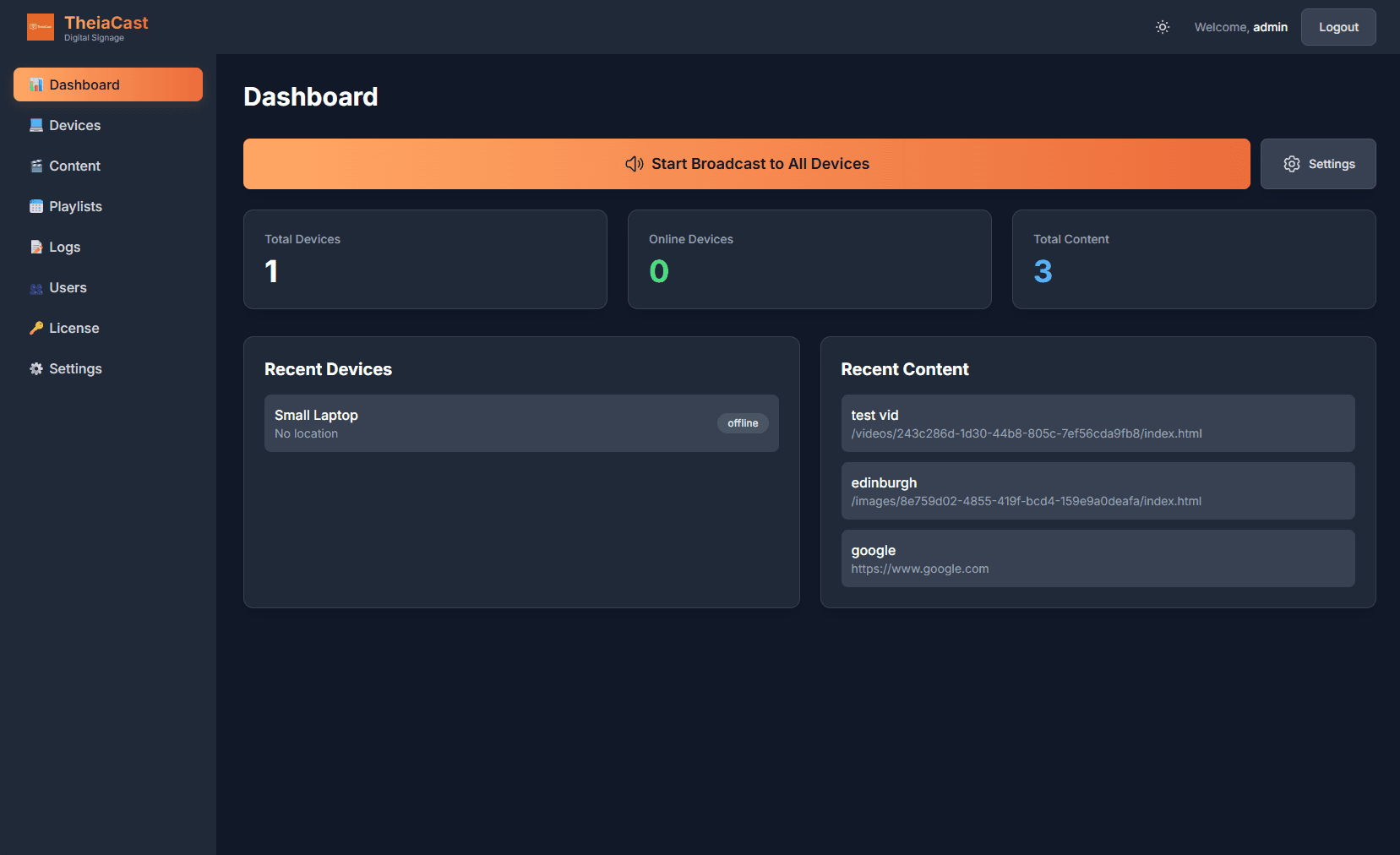
Dashboard home page showing overview statistics
Main Navigation
The left sidebar provides access to all features:
- 📊 Dashboard - Overview of your system
- 💻 Devices - Manage display devices
- 🗂️ Groups - Nest devices into groups with dynamic tag rules for bulk targeting
- 🗺️ Floor Map - Place devices on building floor plans
- 📈 Reports - Proof-of-play, screen uptime, and CSV export
- 📝 Logs - View system logs
- 🎬 Content - Upload and manage content
- 📅 Playlists - Create content schedules
- 🖼️ Canvas - Free-form designs with live zones and widgets
- ⬆️ Updates - Check for and deploy client software updates
- 👥 Users - Manage user accounts
- 🛡️ Roles - Manage custom roles and permissions
- 🔐 API Keys - Create and manage API keys
- 🔗 Webhooks - Configure outbound event callbacks
- 🔑 License - View license status
- ⚙️ Settings - Configure system settings
Quick Stats
The dashboard shows at-a-glance information:
- Total devices (online/offline)
- Total content items
- Total playlists
- Active broadcasts
- System health
Interface Language
The admin interface is available in several languages. Change it under Settings → Account & Security → Language. This is a per-browser preference (stored locally, like the dark / light theme) — each admin picks their own, and it does not change what anyone else sees.
Translations beyond English are machine-generated and have not been professionally reviewed.
Managing Devices
Devices are the display screens running your content (Windows PCs, Raspberry Pis, etc.).
Viewing Devices
Navigate to Devices in the sidebar.
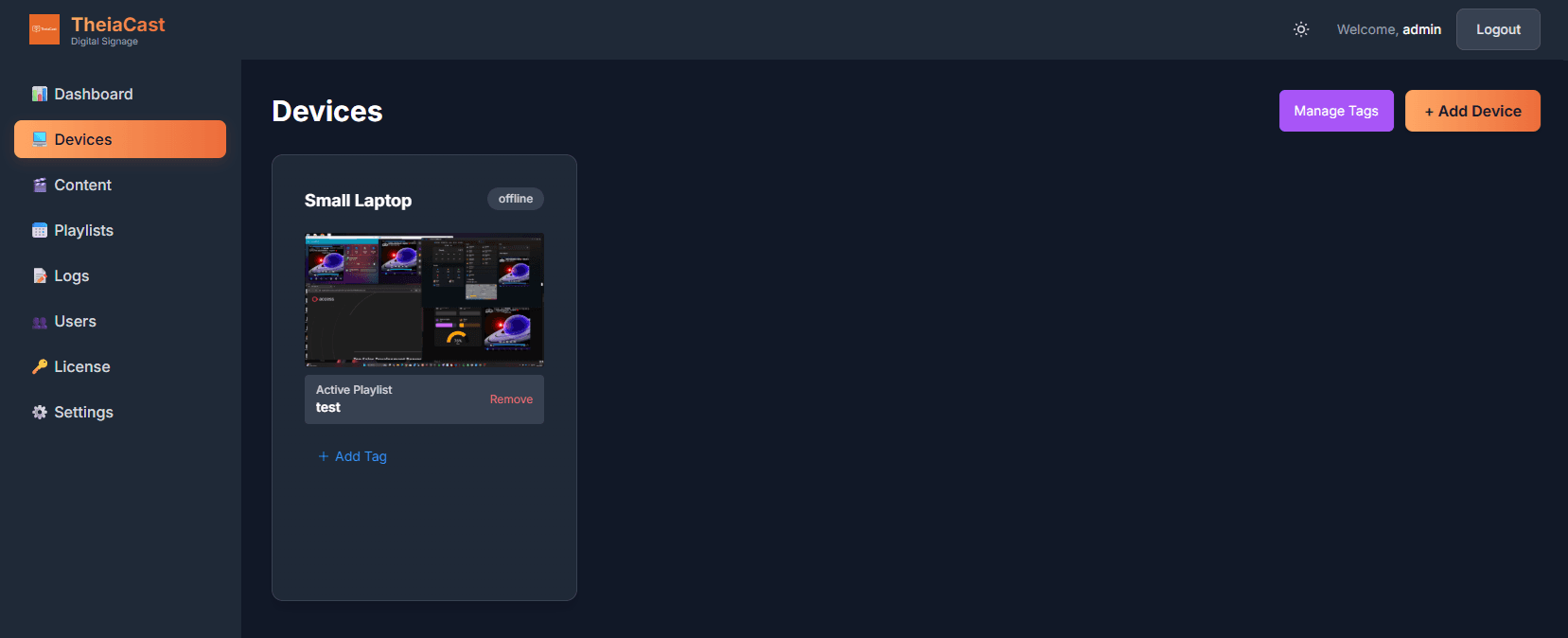
Devices page showing multiple device cards
Each device card shows:
- Device name and status (Online/Offline)
- Group and tag chips - the device’s deepest containing group(s) and any tags, shown in a row above the thumbnail
- Live thumbnail - Latest screenshot
- Current playlist - What's currently assigned
- Playback controls - Pause, resume, next, previous
- Health status - Click card to flip and see details
Adding a New Device
- Click + Add Device
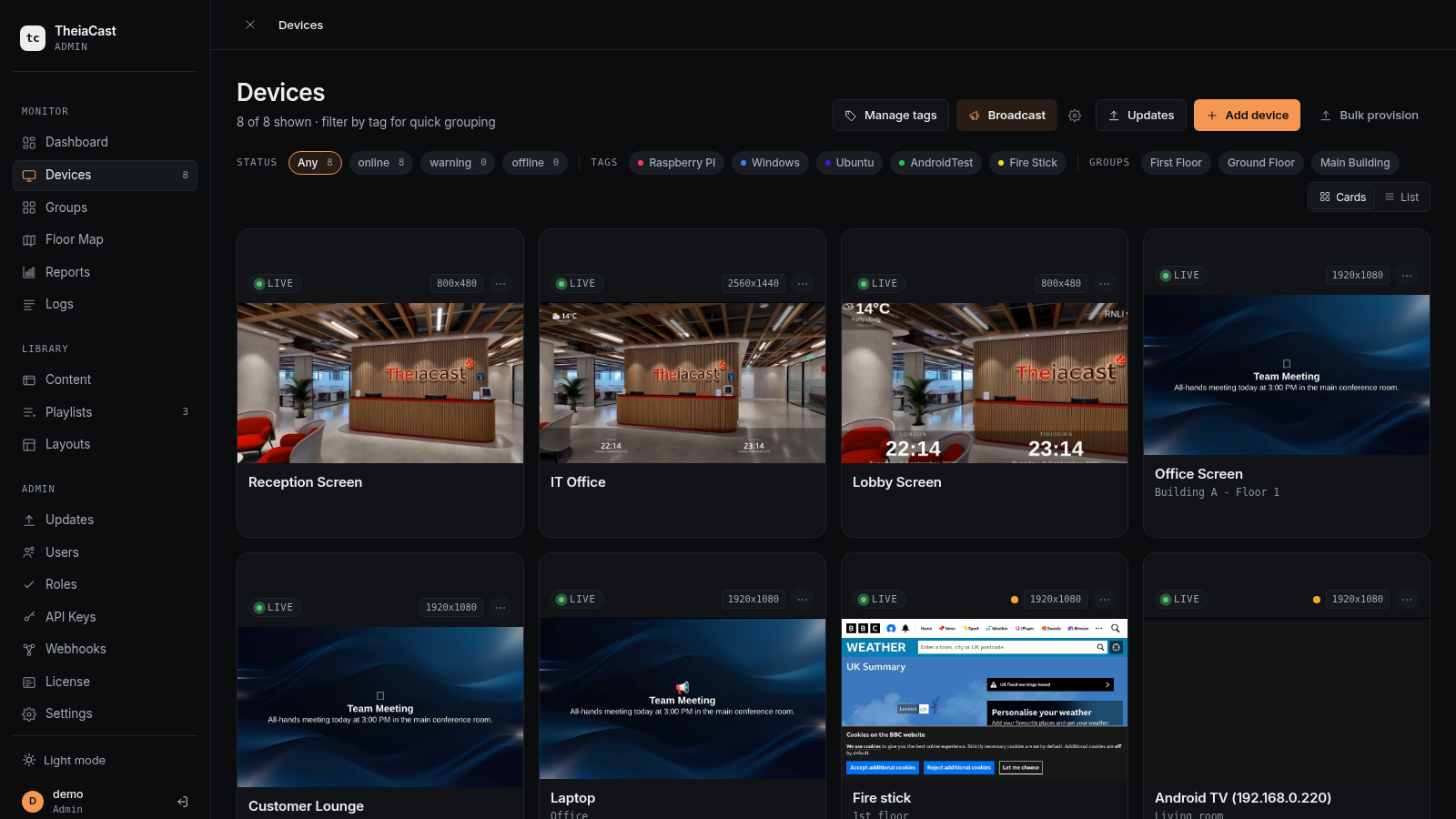
- Fill in the device details:
- Device ID: Unique identifier (e.g., "lobby-display-01")
- Name: Friendly name (e.g., "Main Lobby Display")
- Description: Optional description
- Location: Optional location info
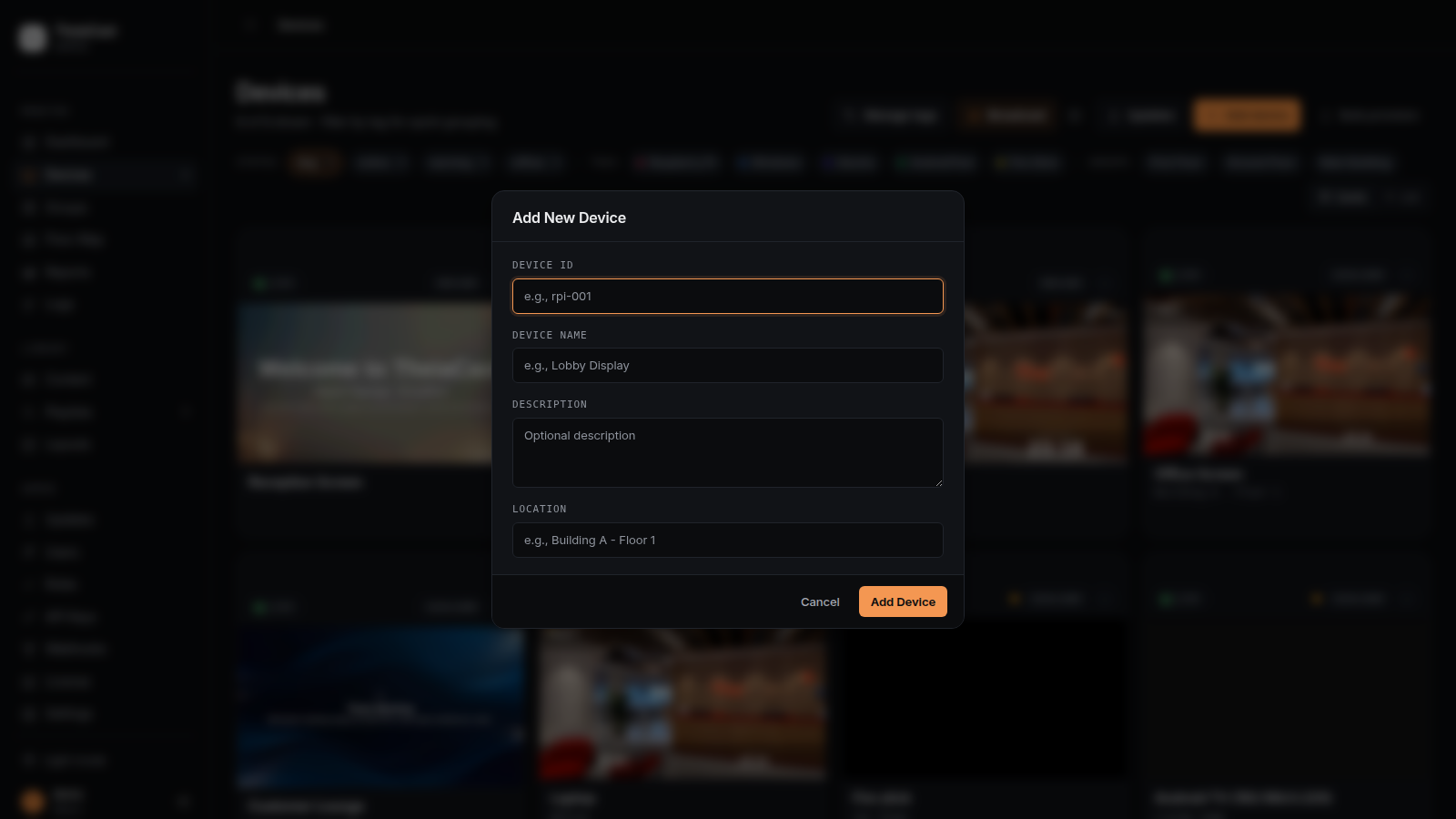
- Click Create
- Important: Copy the device token shown in the popup
- You'll need this to configure the client software
- Store it securely - you can view it later if needed
Screenshot pending for this step.
- Install and configure the client software on your display device using this token (see Installation Guide)
Device Actions
Click on a device card to flip it and reveal actions:
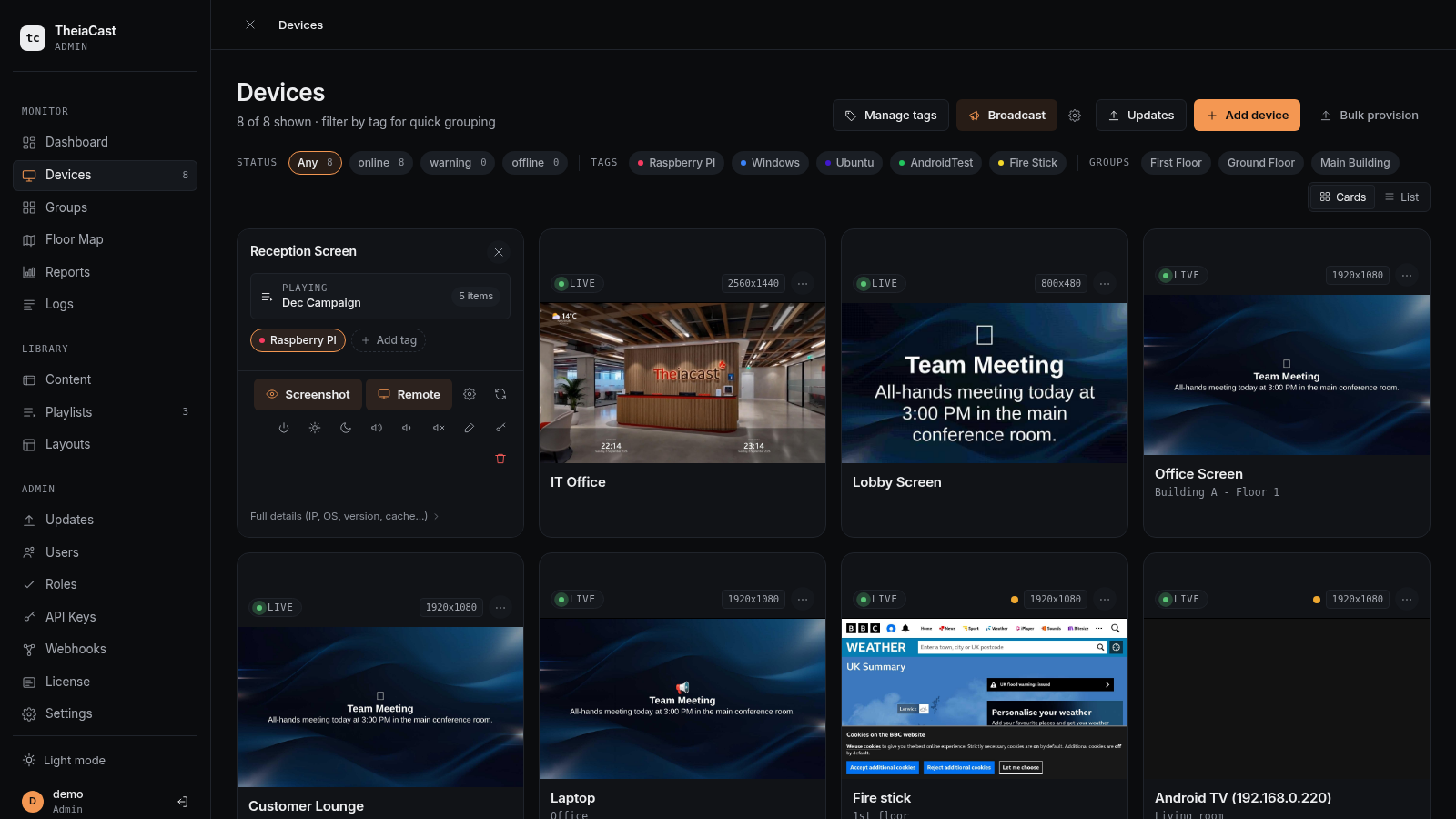
Available actions:
- Assign Playlist - Choose which playlist to display
- Screenshot - Take immediate screenshot
- Live Remote - View and control display in real-time
- Visual Remote - Control using screenshot interface
- View Token - Show the device token
- Restart / Reboot - Restart the client app, or reboot the whole device
- Delete - Remove device (confirmation required)
Screen Power & Volume Control (HDMI-CEC)
Extra buttons on the device card — screen on (☀️), screen off (🌙), volume up, volume down, and mute — send a one-off command to the screen over HDMI-CEC. No restart needed. Mute is a single toggle; the same button un-mutes.
These buttons need all of the following:
- A Raspberry Pi client. Windows has no CEC support yet — the buttons show but do nothing.
- A CEC-capable display with its own HDMI-CEC setting turned on. Every brand ships this off and names it differently: Anynet+ (Samsung), SimpLink (LG), BRAVIA Sync (Sony), VIERA Link (Panasonic), EasyLink (Philips). This is by far the most common reason nothing happens.
A per-device Power Schedule (flip the card → Configure Display → Power Schedule) can turn the screen on and off automatically at set times on chosen days.
CEC has no reliable way to read a TV’s true power or volume state, so TheiaCast only knows what it last sent — a change made with the TV’s own remote is invisible to it. Brightness control is not available— it isn’t part of the HDMI-CEC standard.
Filtering Devices by Tags
Use tags to organize devices by location, department, or purpose:
- Click Manage Tags to create tags
- Assign tags to devices
- Use the tag filter buttons to show only specific groups
Device Groups
Groups are a separate, nested-folder way to organize devices — a building, a floor, a region — distinct from the flat Tags system above. They sit alongside tags rather than replacing them: a group can hold devices directly, or automatically via a dynamic tag rule (any device carrying every tag in the rule joins the group without being added by hand).
- Go to Groups (under Monitor in the sidebar)
- Click New group for a top-level group, or select a group and Add sub-group to nest one underneath it — nesting can go as deep as you like, e.g.
Site → Building A → Floor 2 - Add devices directly from the group’s detail panel, and/or attach a dynamic tag rule
A group’s effective device count rolls up its own direct members, its own tag-rule matches, and every sub-group’s devices recursively, so a device several levels deep still counts toward the top-level group. Use a group to broadcast to, or push a playlist across, everything under it at once instead of picking devices one at a time — and use the Groups filter chip row on the Devices and Updates pages (next to the Tags row) to narrow either page down to a group’s members. Device Groups is available on every tier. See the Monitoring Guide for the full reference.
Teams Relay
Re-broadcasts a live Microsoft Teams meeting or Town Hall to selected — or all — screens, full-screen, overriding whatever those screens are currently showing until stopped. Uses Teams’ own RTMP-Out (“Custom Streaming”) feature — TheiaCast never joins the meeting itself.
- Click Teams Relay on the Devices page
- Target devices with the same tag/group selector used for Broadcast (leave both empty for every device), optionally give the session a label, then Start Relay
- TheiaCast generates a one-time RTMP Server URL and Stream Key — hand these to whoever is running the Teams meeting, who adds the Custom Streaming app in Teams and pastes them in
- Once Teams starts streaming, targeted screens switch over automatically; the status pill goes from Waiting for Teams to connect to Live
Normal playlist rotation is paused, not lost, and resumes exactly where it left off when you click Stop Relay. A Microsoft 365 admin needs to enable Teams live streaming for your tenant once before first use, and the organizer needs an Enterprise-tier (E3+) Microsoft 365 licence — a Business Premium-only tenant can see “You don’t have streaming permissions” even with Live Streaming turned on. Teams Relay is available on every tier. See the Teams Relay guide for the full reference and troubleshooting.
Playback Controls
Control playlist playback directly from the device card:
- ▶️ Play/⏸️ Pause - Resume or pause playlist rotation
- ⏮️ Previous - Go to previous playlist item
- ⏭️ Next - Skip to next playlist item
- Status indicator - Shows playing (green), paused (yellow), or broadcasting (purple)
- Item counter - Shows current item position (e.g., "2/5")
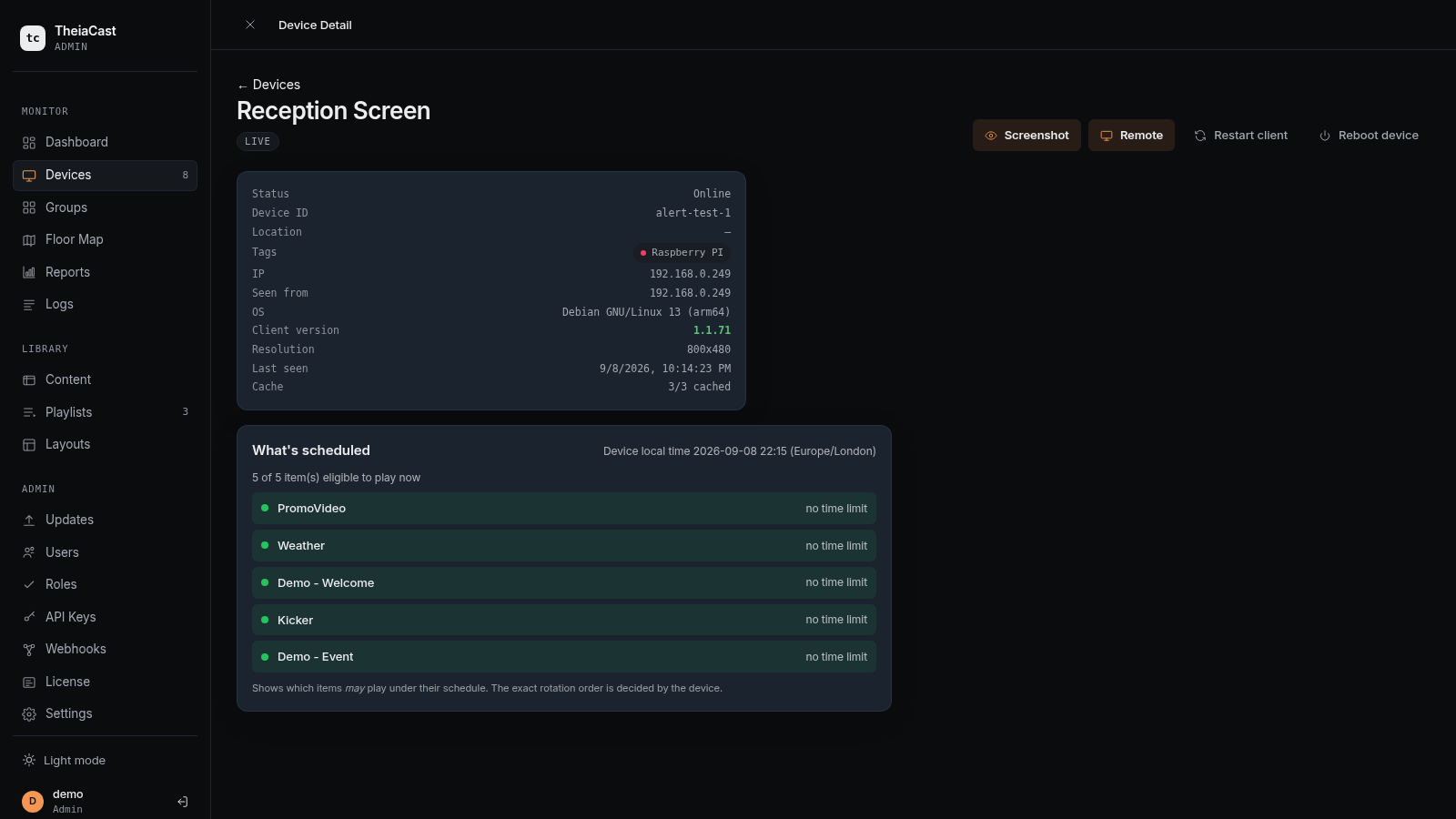
Viewing Device Details
Click the thumbnail to see:
- Full-size screenshot
- Current URL
- Health metrics (CPU, memory, disk usage)
- Connection status
- Last screenshot timestamp
Managing Content
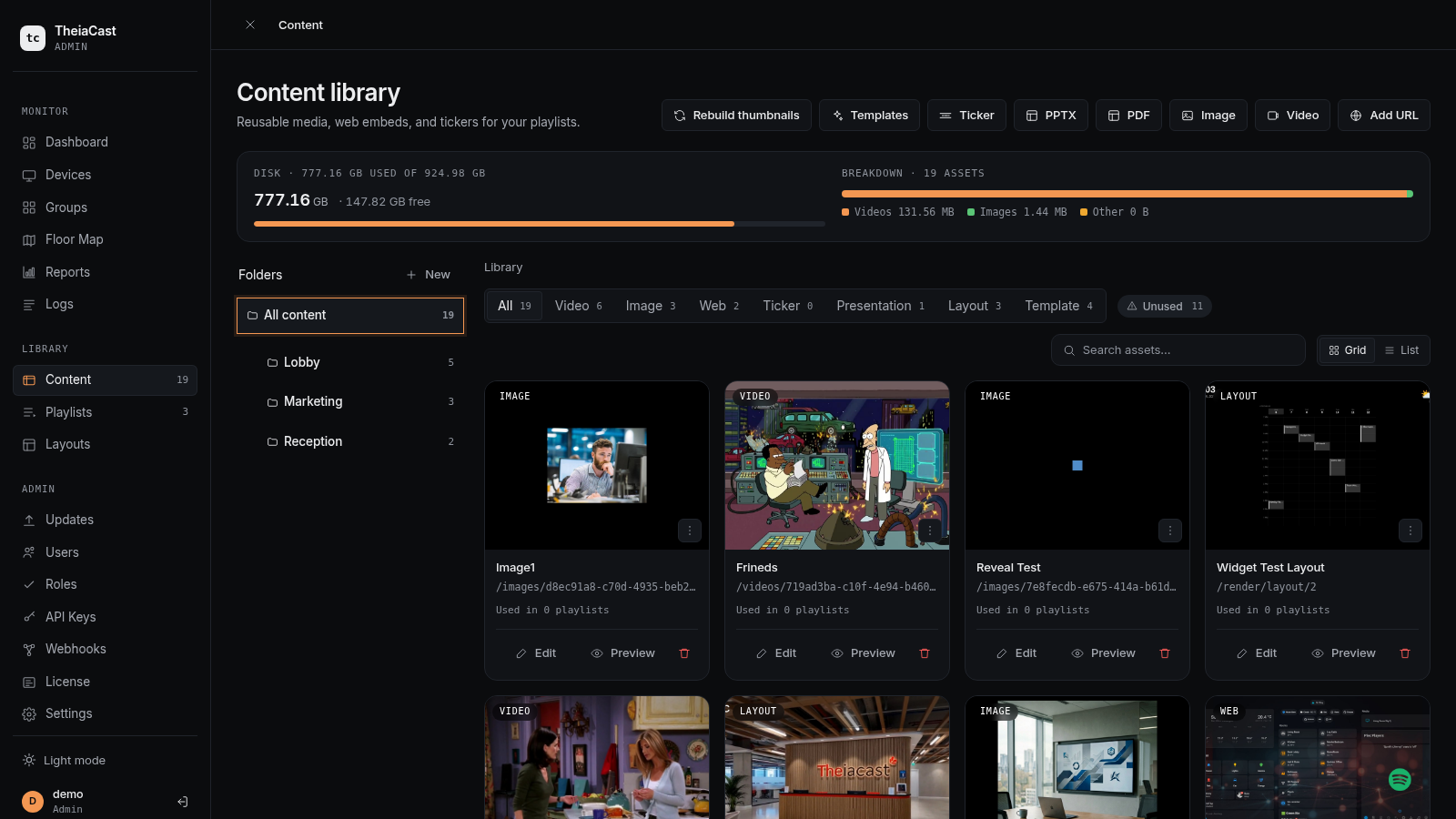
Content is what displays on your screens - websites, videos, images, or presentations.
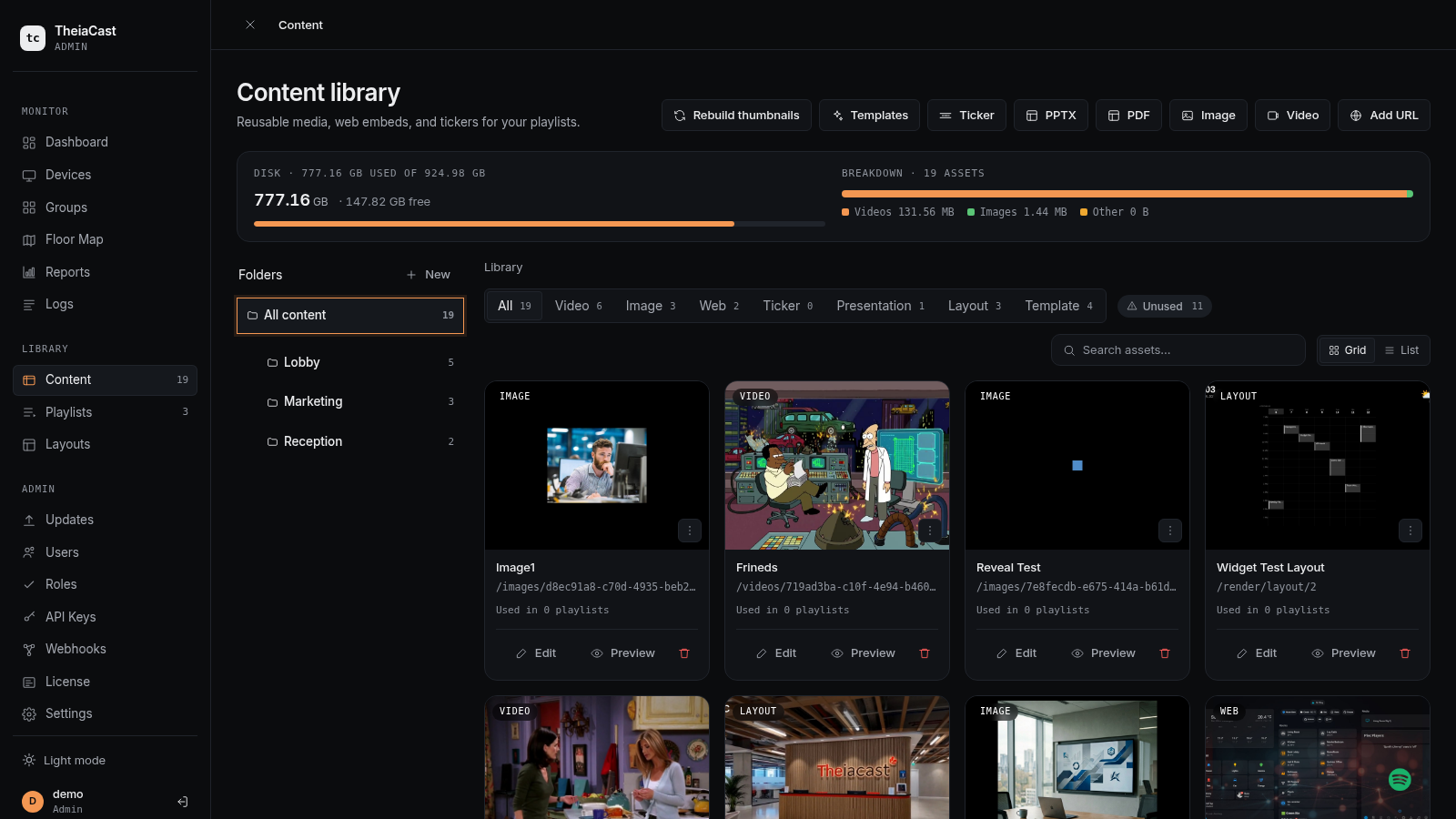
Viewing Content
Navigate to Content in the sidebar.
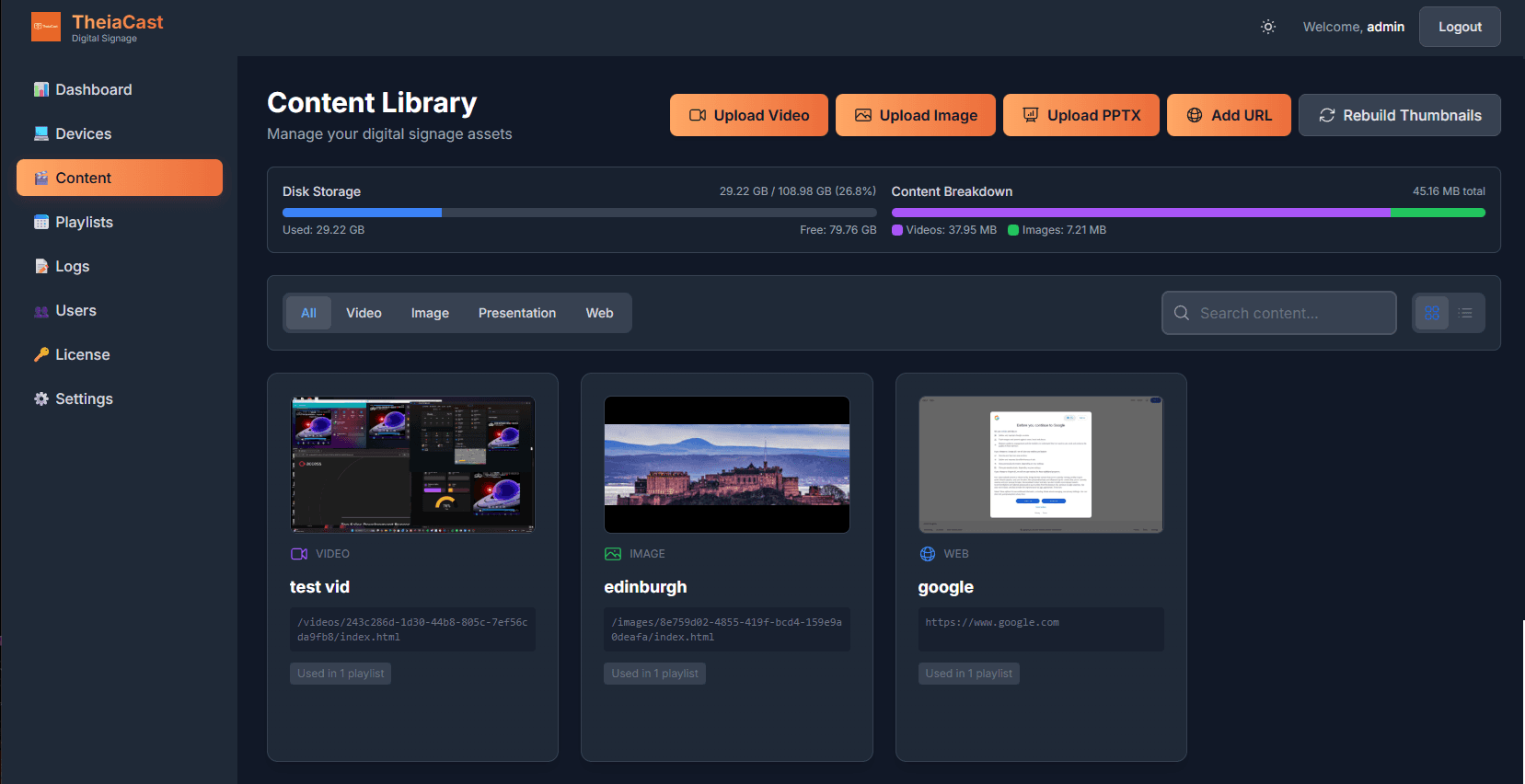
Content page with grid view
View Modes
Toggle between two viewing modes:
- Grid view (📱) - Thumbnail previews
- List view (☰) - Detailed list
Your preference is saved automatically.
Content Types
TheiaCast supports several content types:
- 🌐 Web Pages - Any website URL
- 🎬 Videos - MP4 files uploaded or from URL
- 🖼️ Images - JPG, PNG files
- 📊 Presentations - PowerPoint (.pptx) and PDF files (converted to a slideshow)
- 🎨 Templates - A ready-made, form-configured design — no external design tool needed. See Template Library below
Adding Web Content
- Click + Add Content
- Enter details:
- Name: Descriptive name
- URL: Full website address (e.g., https://example.com)
- Description: Optional notes
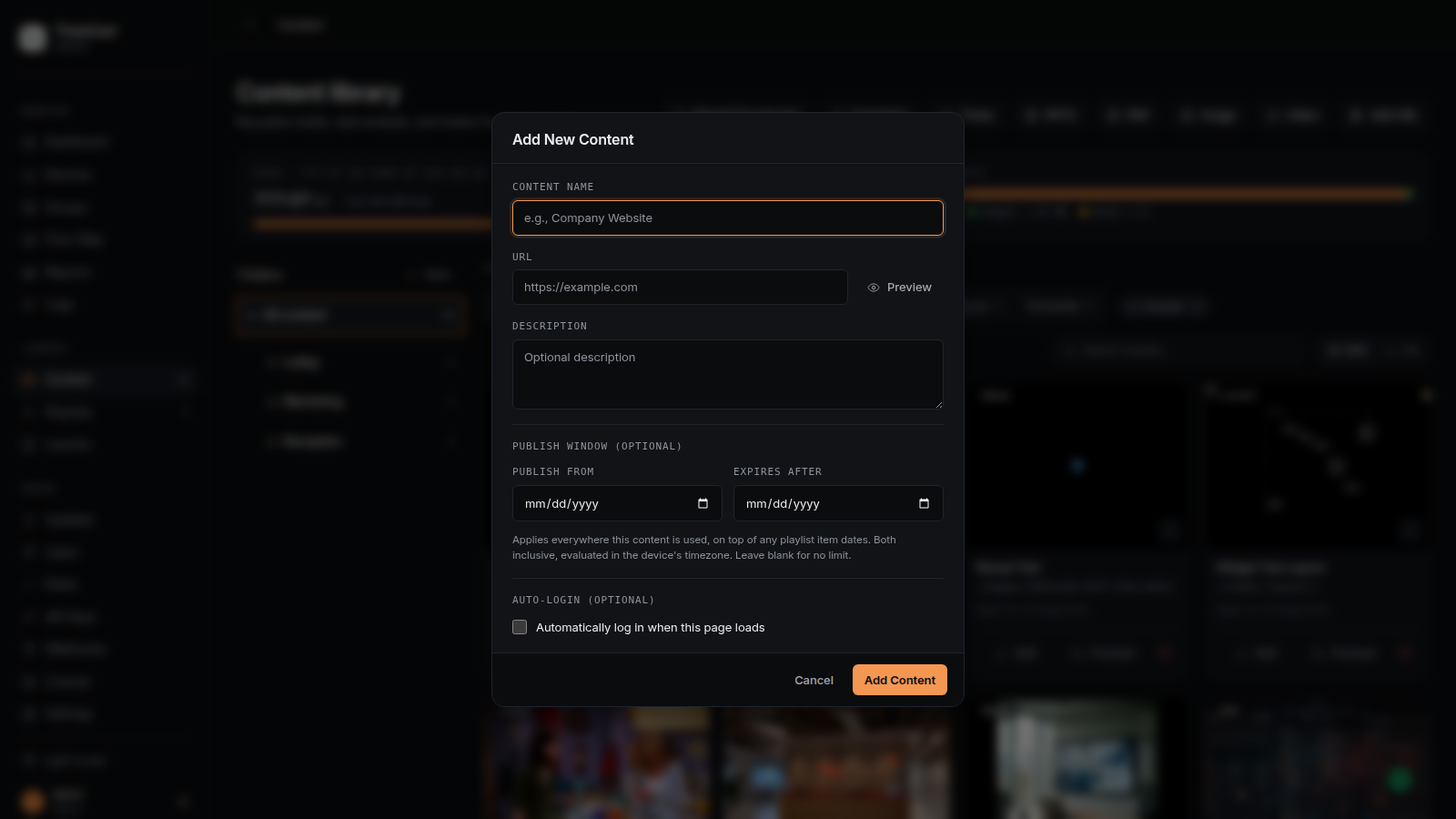
- Click Save
Uploading Videos
- Click the Upload Video button
- Fill in the form:
- Name: Video title
- File: Choose your MP4 file (up to 32GB)
- Upload progress will show
- Click Upload
The video will be:
- Uploaded to the server
- Cached on display devices
- Available for playlists immediately
Uploading Images
- Click Upload Image
- Enter name and select image file (JPG or PNG)
- Click Upload
Images display full-screen on devices.
Uploading Presentations
- Click Upload Presentation
- Enter details:
- Name: Presentation title
- File: PowerPoint (.pptx) or PDF file
- Duration per slide: Seconds to show each slide (default: 10)
Screenshot pending for this step.
- Click Upload
The presentation will be converted to individual slides.
Auto-Authentication for Websites
Some internal tools require a login. TheiaCast can fill in credentials automatically when a device navigates to that URL, or — once a session has been captured — sign the device in with a saved session instead of sending the password at all.
Platform support: currently the Android / Fire TV client only. Raspberry Pi and Windows clients don’t act on these fields yet, even though they can be configured for any content item.
Only a simple single-page login form is supported (one username field, one password field, one submit button). Multi-step sign-in flows, two-factor authentication, and CAPTCHA-protected logins aren’t supported.
Recommended: Visual Setup
Open (or create) a content item — it must already be saved, since the visual setup needs a real URL to load — toggle on Automatically log in when this page loads, then click Set up visually. This opens a full-screen live view of the actual login page, streamed from a real headless browser running on the server:
- Click anywhere on the page just like using a real browser — the click lands on the real page.
- Type in the text box below the live view and press Send to type into whatever field is currently focused, or use the Enter / Backspace / Tab buttons for keys that aren’t plain text.
- Repeat until you’re actually logged in and looking at the real destination page.
- Click Done — this captures whatever session now exists (cookies and/or the site’s own login token) and saves it.
This also works from a phone or tablet. If Done reports it found no session, the site didn’t yield to this approach — the manual method below won’t help either, since both ultimately depend on the same login page.
Advanced Fallback: Manual CSS Selectors
If the visual setup can’t reach the page (for example, a login page only reachable from a device’s own network, not the server’s), expand Advanced: enter details manually and fill in the fields directly:
- Username Selector: CSS selector for the username field (e.g.,
#username) - Password Selector: CSS selector for the password field (e.g.,
#password) - Submit Selector: CSS selector for the submit button (e.g.,
button[type="submit"]) - Username: Login username
- Password: Login password (never shown again after saving — re-enter it to change it, leave blank to keep the existing one)
Finding CSS Selectors: Open the login page in Chrome/Edge → right-click the field → Inspect → note the id or name attribute → use #id for IDs or [name="fieldname"] for names.
Use Capture session now to test the configuration immediately. A successful capture logs in once, server-side, and saves the resulting session; from then on, the device signs in using that saved session and TheiaCast stops sending the password to the device at all.
Template Library
Click Templates on the Content page to build a piece of content from a ready-made design — no external design tool needed. Pick a template, fill in a form, save. A live preview updates as you type; click and drag the text in the preview to move it anywhere on the screen, and use Reset position to snap it back to centre.
| Template | Good for |
|---|---|
| Announcement | A full-screen notice (title, message, severity colour, optional icon) |
| Event | A poster for an upcoming event (title, date, time, location, description) |
| KPI Board | Up to 4 metric tiles with a label, value, and trend arrow |
| Welcome Screen | A greeting screen with an optional logo and subtitle |
| Menu Board | A priced list — leave a price blank to turn a row into a section header |
| Quote / Testimonials | A large quotation, or up to 3 customer quotes with attribution |
| Schedule Board | A list of time slots and activities — meeting rooms, agendas |
| Countdown Board | A live-ticking countdown to a target date and time |
| Team Spotlight / Birthday & Anniversary / Congratulations | Recognise a person, a work anniversary, or a celebratory occasion |
| Safety Notice | A numbered list of safety or emergency steps |
| Now Serving / Room Status / Directory | A ticket-number display, room availability, or a wayfinding directory |
| Promotion Banner / Feature Spotlight | A sale banner, or a single hero product with price and description |
| FAQ Board / Values Board / Comparison Board | Q&A lists, culture words, or a two-column side-by-side comparison |
| Stat Highlight / Goal Progress / Leaderboard | One headline statistic, a progress bar to a target, or a ranked score list |
| Certificate / Award | A recipient, award title, issuer, and date |
| Bar Chart / Timeline | Up to 6 proportionally-scaled bars, or a vertical timeline of dated milestones |
Every template also has a Background Style picker (Flowing / Geometric / Particles) and an Orientation switch (Landscape / Portrait) — pick whichever matches the physical screen. Afterwards a template behaves like any other content item: add it to a playlist, assign a duration, and re-edit it any time (the same form reopens pre-filled, including its saved text position, style, and orientation).
AI-Enabled Signage
Once an admin connects an AI provider (Settings → AI — OpenAI, Anthropic, or any OpenAI-compatible endpoint), a handful of AI-assisted buttons appear across the Content page: Write with AI / Improve with AI next to any template text field, Generate with AI for template background images, Suggest with AI for an image’s alt text on upload, and an AI Starter Playlist button that turns a one-line description of your business into a small ready-made playlist. Every suggestion is reviewable and editable before it’s applied — nothing AI writes is ever saved automatically. These buttons are completely absent until a provider is configured. See the AI-Enabled Signage guide for the full reference.
Content Approval Workflow (optional)
Off by default. Turn it on under Settings → Content & Retention → Content Approval Workflow if you want a review step before anything new goes live. When enabled:
- New content (uploaded or added by URL) starts as Draft.
- The creator clicks Submit for review on the content card.
- Any Operator or Admin clicks Approve or Reject (with an optional reason). The creator is emailed either way.
- Only Approved content can be added to a playlist. A Draft, Pending, or Rejected item stays in the library with a status badge but cannot reach a device.
A Pending review filter chip appears above the library grid whenever something is awaiting submission or review. Rejected content can be edited and re-submitted.
Editing Content
- Click the edit button (✏️) on any content item
- Modify the details
- Click Save
Deleting Content
- Click the delete button (🗑️)
- Confirm deletion
- Note: Content used in playlists will be removed from those playlists
Searching Content
Use the search box to find content by name or URL:
Storage Management
View storage usage at the bottom of the Content page:
Shows:
- Total space available
- Space used by videos, images, presentations
- Percentage used
Creating Playlists
Playlists control what content displays on devices and when.
Viewing Playlists
Navigate to Playlists in the sidebar.
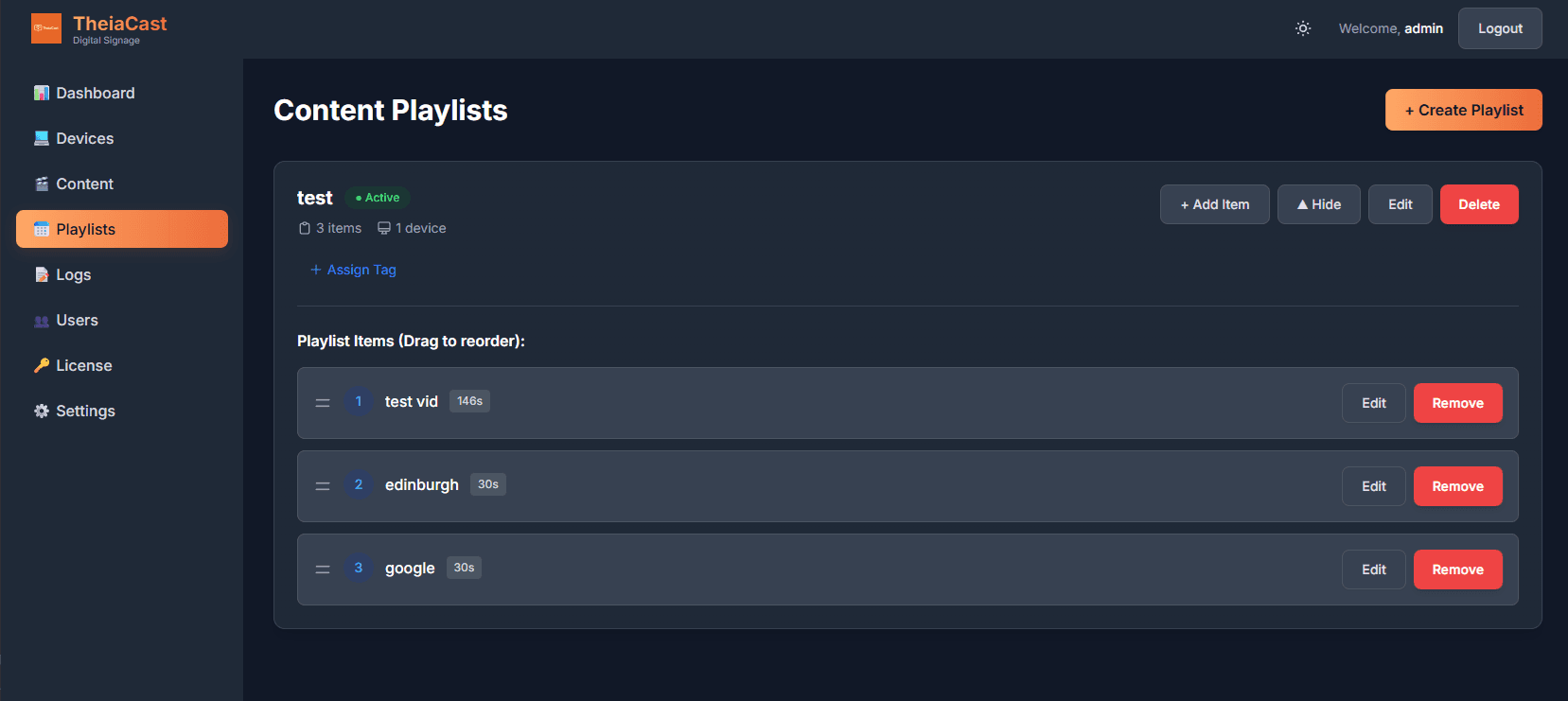
Playlists page with 2-column grid layout
Filtering Playlists
Use the filter tools at the top:
- Search box: Find playlists by name or description
- Tag filters: Click tags to filter by category
- Results counter: Shows how many playlists match
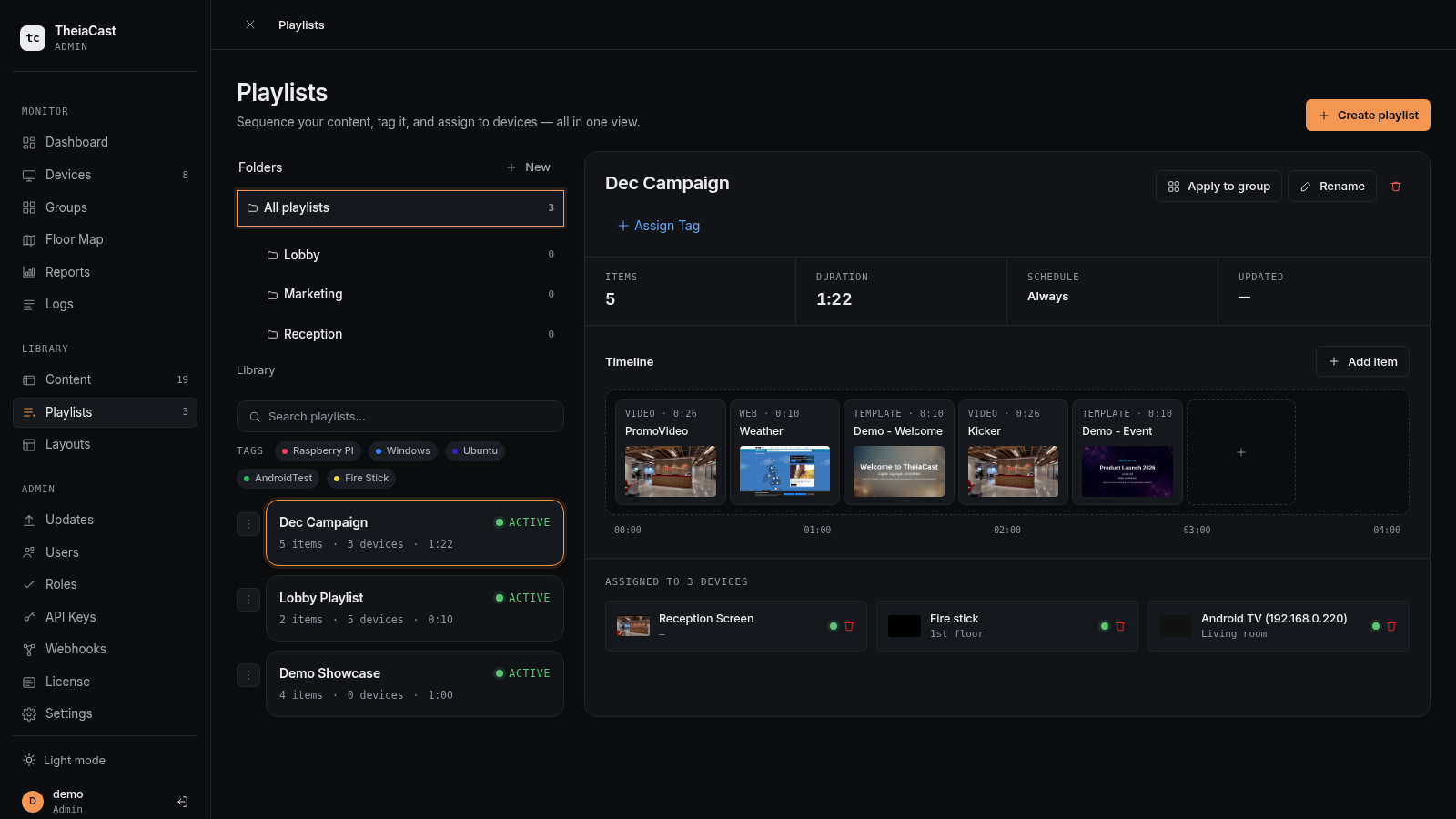
Creating a Playlist
- Click + Create Playlist
- Enter details:
- Name: Playlist name (e.g., "Reception Area - Weekdays")
- Description: Optional notes
- Active: Check to enable immediately
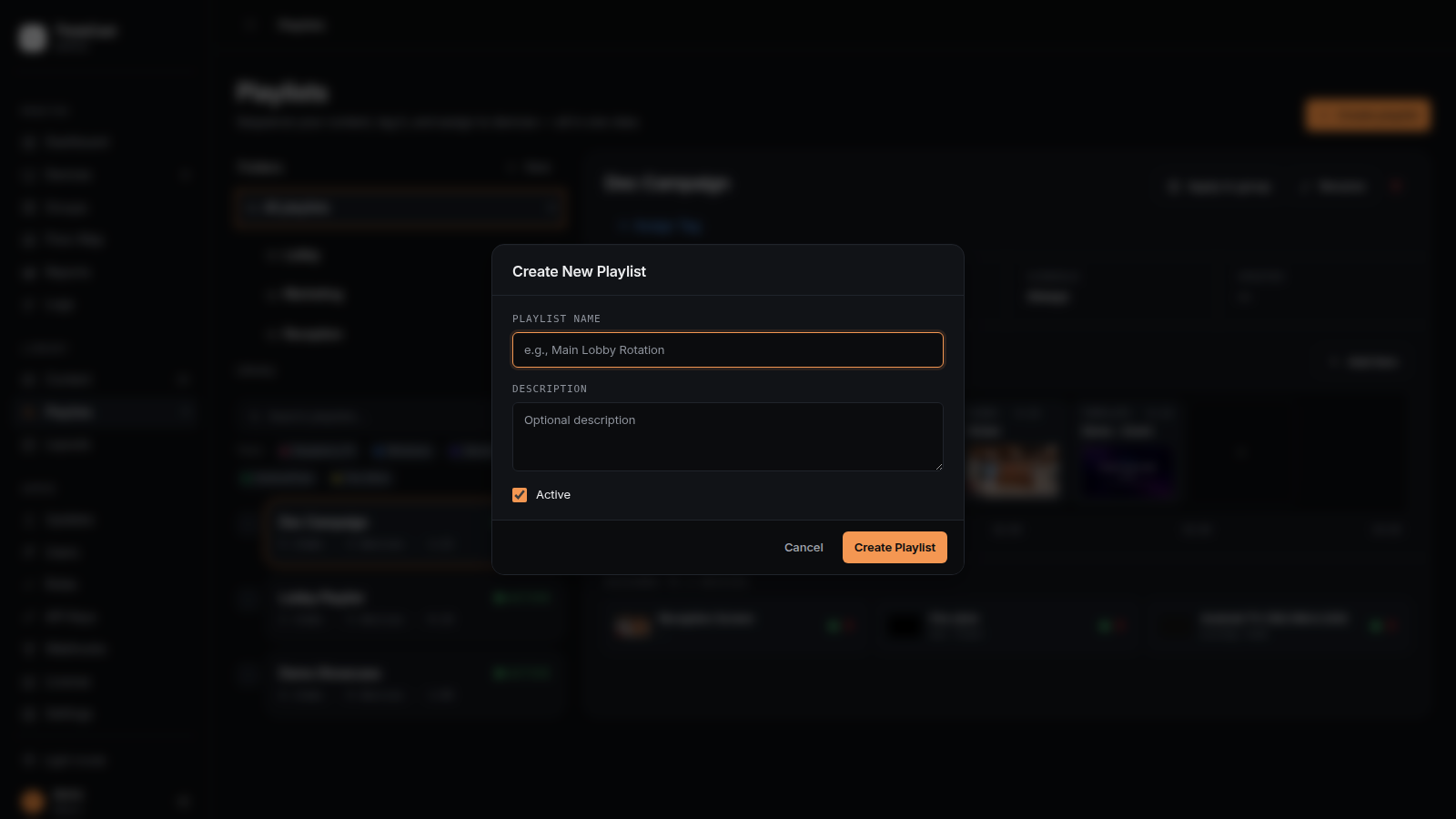
- Click Create
Adding Items to Playlist
- Find your playlist and click Add Item
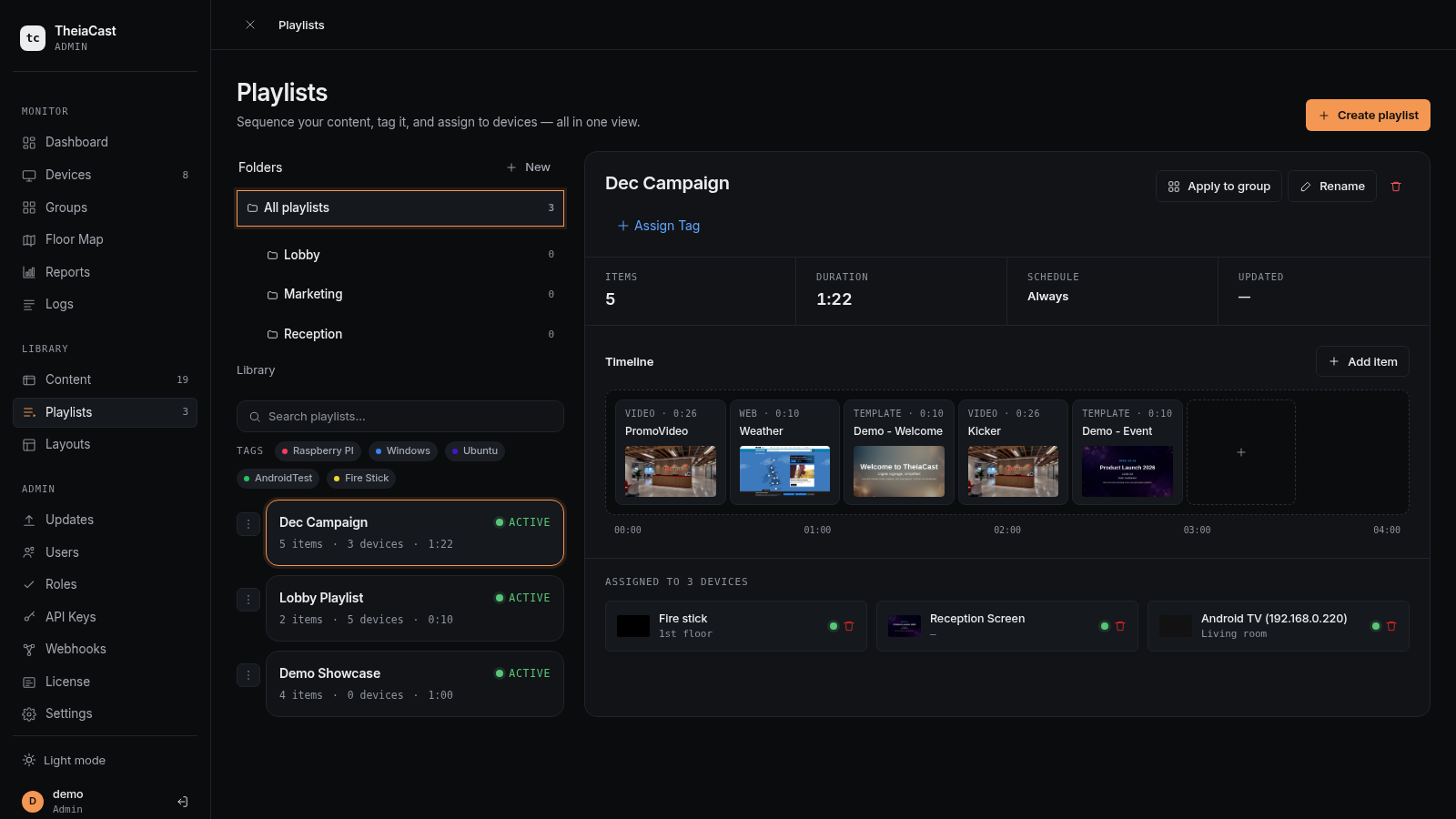
- Configure the item:
- Content: Select from your content library
- Display Duration: Seconds to show (0 = permanent/static)
- Order: Position in playlist (auto-assigned)
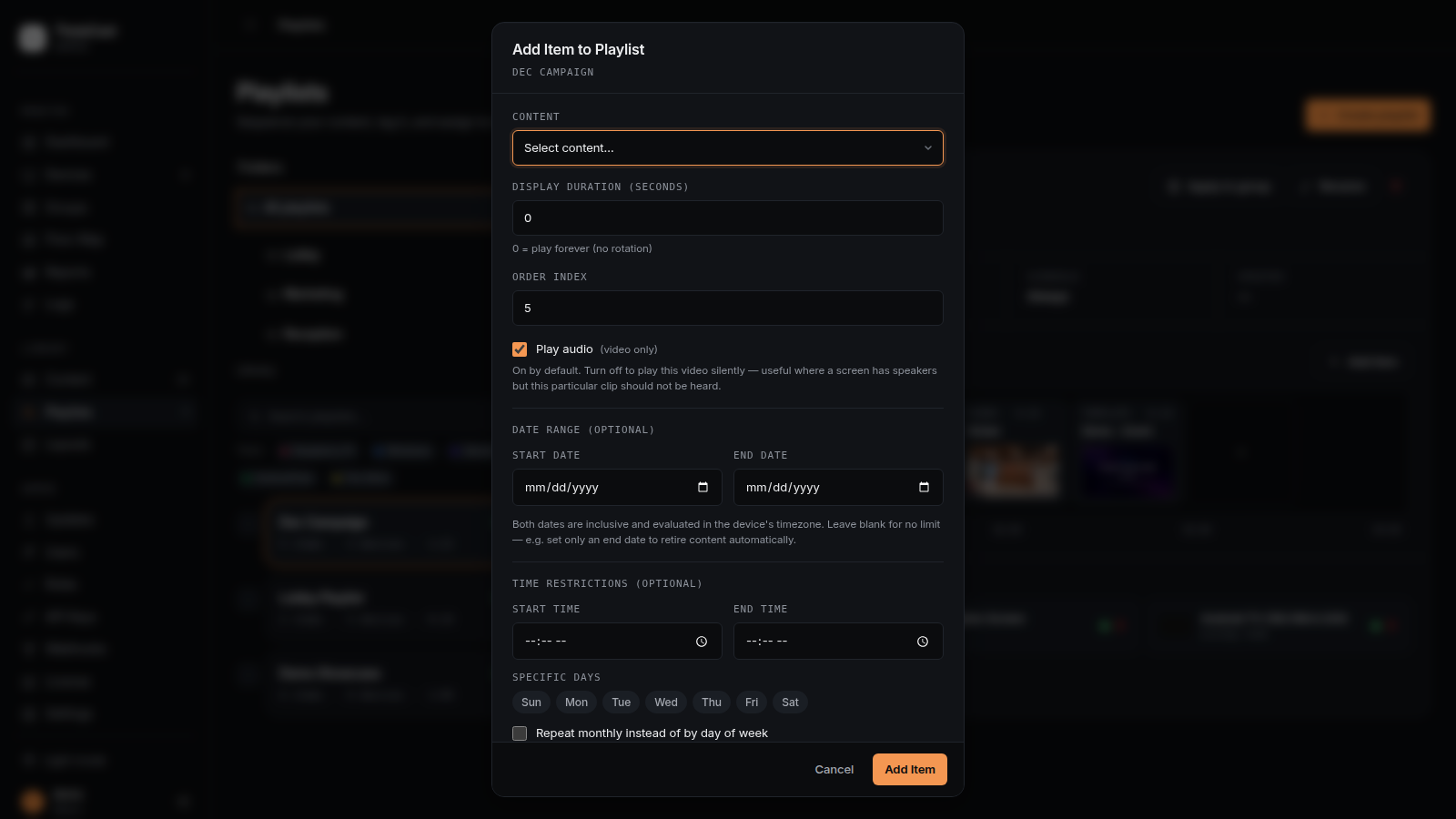
- Click Save
Duration Tips:
- 0 seconds: Content stays on screen permanently (good for single-item playlists)
- 15-30 seconds: Good for images and short videos
- 60+ seconds: For detailed dashboards or long videos
Advanced Scheduling
Restrict when content displays using time windows and days of week.
Time Windows
Show content only during specific hours:
- When adding/editing a playlist item, expand Time Window
- Set Start Time and End Time (24-hour format)
- Example: 09:00 to 17:00 (9 AM to 5 PM)
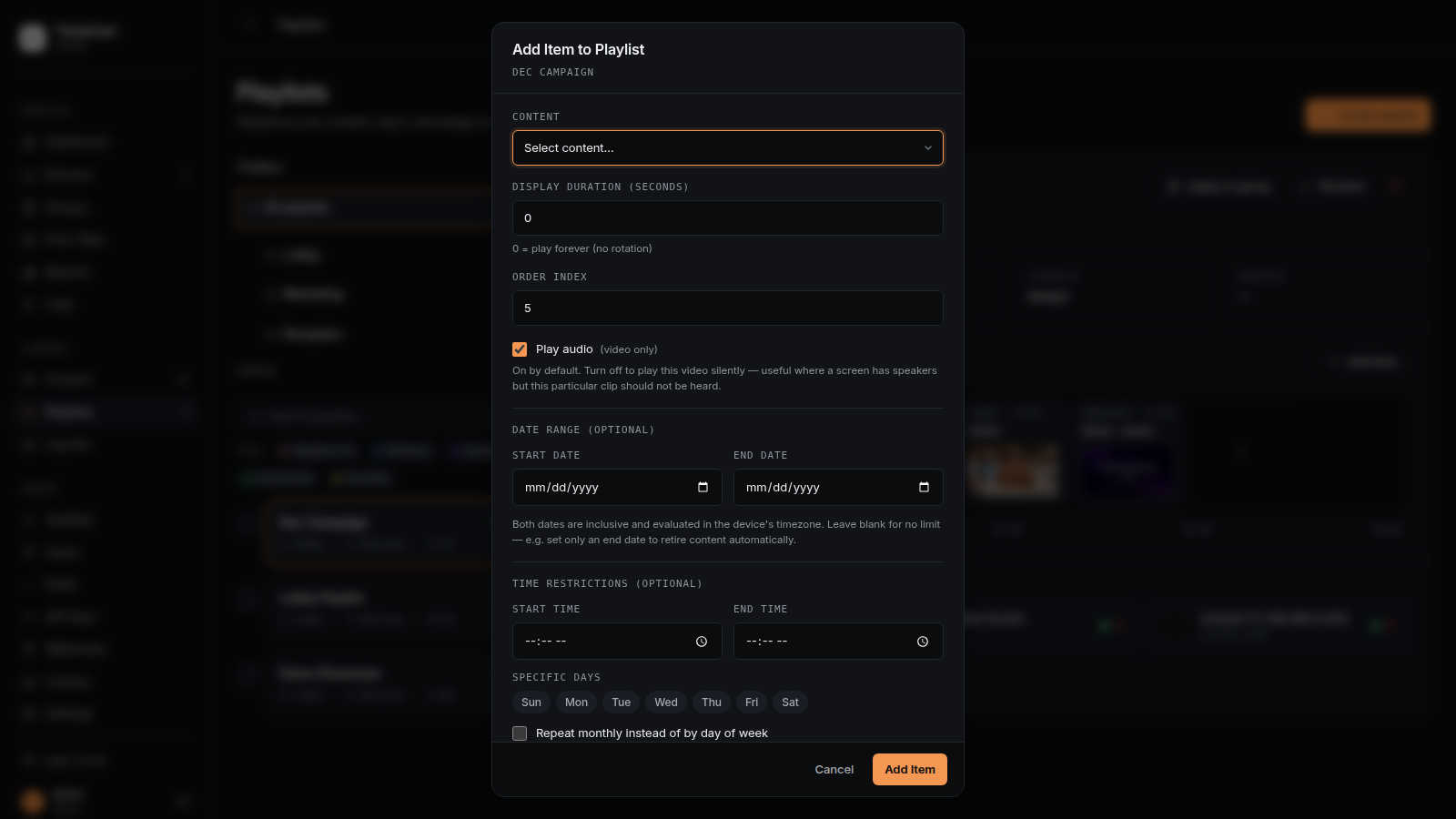
- Content only displays between these times
Overnight windows
Windows that cross midnight now work as expected. Set 22:00 to 06:00and the item plays from 10 PM through 6 AM the next morning. Both ends are inclusive, so an 06:00–12:00 window runs right up to and including 12:00.
Date Ranges
Run an item only between two calendar dates:
- When adding/editing a playlist item, expand Date Range
- Set a Start Date and/or End Date (both inclusive)
- Example: 1 December to 14 December for a two-week campaign
- Leave one side blank for an open-ended range
- Dates are evaluated in the device’s time zone (see Scheduling and Time Zones)
Clearing a date field removes that bound. An unparseable date is rejected rather than silently cleared, so a saved date is never lost by mistake.
Days of Week
Show content only on specific days:
- In the playlist item editor, expand Days of Week
- Check the days when content should display
- Example: Monday-Friday only
- Content only displays on selected days
Monthly Recurrence
Repeat an item on a monthly pattern instead of specific weekdays — “the 1st Monday of every month” or “the 15th of every month”.
- In the playlist item editor, expand Monthly Recurrence.
- Choose either an nth weekday (e.g. 3rd Friday) or a day of the month (1–31, or Last day of month).
Monthly Recurrence replaces the Days of Week filter on the same item — the two can’t be combined. A “day of month” that doesn’t exist in a given month (e.g. the 31st in April) is skipped, not rolled forward or back — pick Last day of month if you want it to fire every month.
Combined Scheduling Example
Show "Lunch Menu" only Monday-Friday, 11:30 AM - 1:30 PM:
- Time Window: 11:30 - 13:30
- Days: Mon, Tue, Wed, Thu, Fri checked
Item Transitions & Preview
Each playlist can animate the change between items. The control lives in the playlist’s detail header — a dropdown next to the Apply to group, Rename, and Preview buttons. Changes save immediately and are pushed to assigned devices straight away.
| Type | Effect |
|---|---|
| Cut (instant) | No animation — the new item simply replaces the old (default) |
| Fade through black | Dips to black, then back up on the new item |
| Dissolve (cross-fade) | The new item fades in over the old one |
| Slide | The new item slides in over the old one — direction picks which side it enters from (left, right, top, bottom) |
| Wipe | A moving edge reveals the new item — axis picks horizontal or vertical, and Edge angle tilts the edge (−90° to +90°, 0 = straight) |
For non-cut types, the chevron next to the dropdown opens the options: Duration (ms) (0–10000, default 600) plus the direction/axis/angle controls relevant to that type. Transitions apply between playlist items only — the first item shown, broadcasts, and Teams Relay sessions still appear instantly. A missing or unrecognised transition behaves as a cut, so older clients keep working.
The Preview button in the detail header opens a popup that plays the playlist exactly as a device would — real item durations, the configured transition, and video lifecycle handling. Use it to check order, durations, and transitions before assigning. Keyboard: ←/→ skip items, Space pauses the rotation clock, Esc closes the popup.
Reordering Playlist Items
Drag and drop items to change their order:
- Click and hold the drag handle (≡) on an item
- Drag to new position
- Release
The order saves automatically.
Editing Playlist Items
- Click Edit on any playlist item
- Modify settings
- Click Save
Changes take effect immediately on all assigned devices.
Removing Items from Playlist
- Click Remove on the item
- Confirm deletion
The item is removed from this playlist but remains in your content library.
Assigning Playlists to Devices
- Go to Devices page
- Click a device card to flip it
- Click Assign Playlist
- Select the playlist
- Click Assign
The device will immediately start playing the playlist.
Notes:
- A device can have multiple playlists assigned
- Priority is given to the most recently assigned active playlist
- Inactive playlists are ignored
Playlist Tags
Organize playlists with tags:
- Edit a playlist
- Select tags or create new ones
- Save
Use tag filters on the Playlists page to find related playlists.
Scheduling and Time Zones
Every scheduling rule — time windows, days of week, date ranges, and content publish/expiry — is evaluated against a time zone. By default that is the display device’s own clock, but you can pin each device to a specific zone.
Setting a Device Time Zone
- Go to Devices and edit a device
- Choose a Time Zone (IANA name, e.g.
Europe/LondonorAmerica/New_York) - Save — the setting is pushed to the device immediately
- Leave it blank to keep the legacy behaviour of following the device’s operating-system clock.
- A screen in New York and a screen in London can now share one playlist and each show “9 AM–5 PM” content at their own local 9-to-5.
- Changing only the time zone does not trigger the browser restart that other display changes do.
Content Publish and Expiry
Set a go-live and retire date on a content item itself, so it applies everywhere that content is used, across every playlist:
- Edit a content item
- Set Publish At and/or Expires At (both inclusive)
- Before the publish date and after the expiry date, the content is skipped on every device
Where both a content window and a playlist item’s date range apply, the tighter of the two wins.
“What’s Scheduled” Preview
The device page has a What’s scheduled panel that explains, for each item in the assigned playlist, whether it is allowed to play right now — and if not, the exact constraint blocking it (outside its time window, wrong day, before publish date, expired, and so on).
- It reports eligibility, not the live rotation order — use it to answer “why isn’t this showing?”
- Each eligible item shows the last minute it stays eligible (its window is inclusive).
- The preview looks ahead 14 days.
Canvas Designer
The Canvas designer is a free-form editor for a single screen: drag on text, image, and shape elements, plus zone elements — regions that each show a video, a web page, a ticker, or a live widget. Add a canvas design to a playlist the same way you’d add any other content.
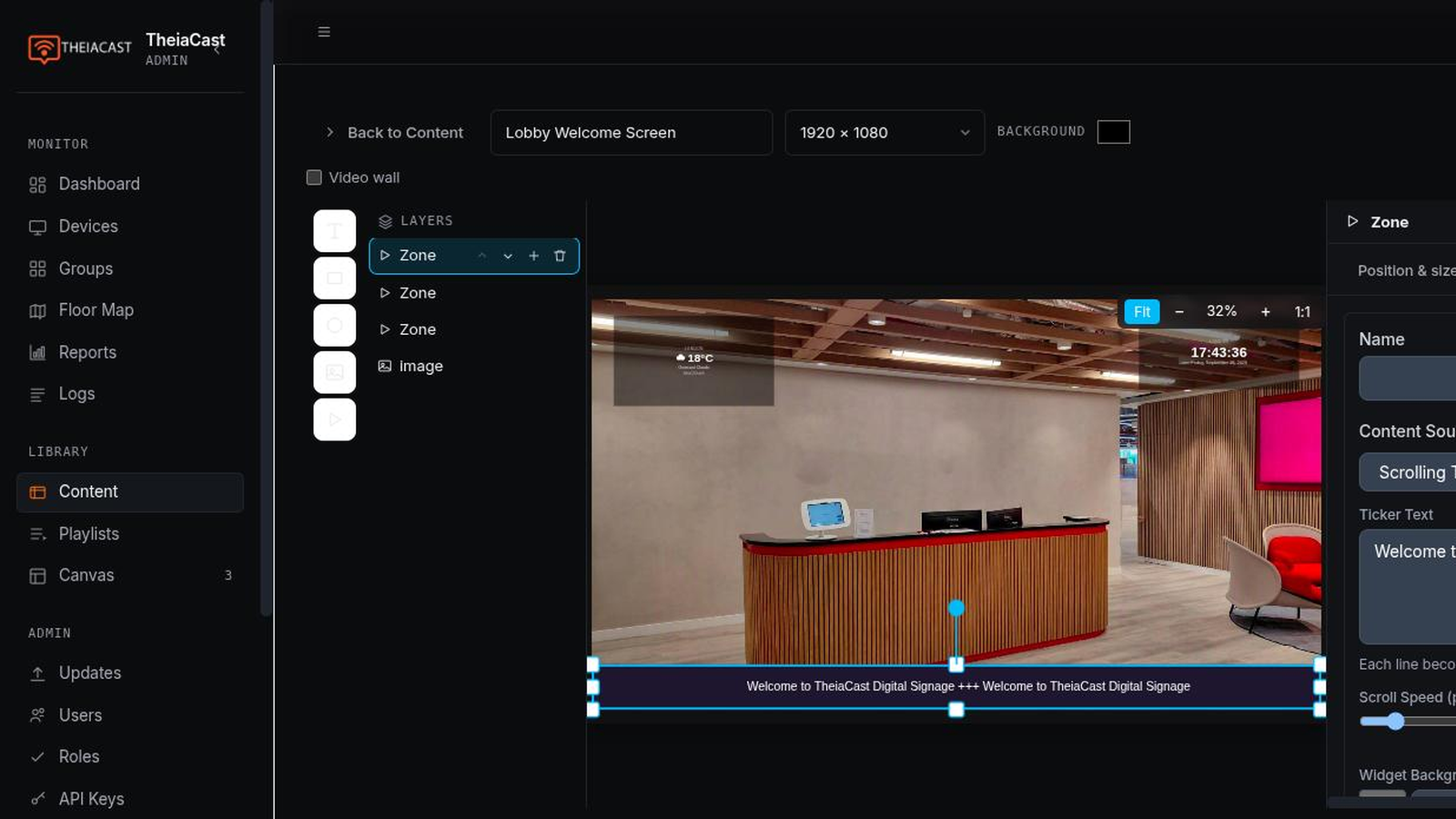
Live Widgets
Add a zone element in the canvas editor and pick a widget type. Each has a live preview on the editor canvas:
- Clock — digital or analogue, with its own time zone, optional label, and toggles for seconds, date, and 12/24-hour format, plus colour controls.
- Countdown — counts down to a target date and time in a chosen zone, correct across daylight-saving changes.
- Weather — current conditions for a location, no API key required. If the weather service can’t be reached it shows an “Unavailable” placeholder rather than a blank zone.
- Calendar — upcoming events from an ICS/iCal feed (Google Calendar, Outlook/Microsoft 365, or any calendar app that can publish one). Choose between four views — List, Month grid, Week, or Day — plus a time zone, refresh interval, and appearance settings. If the feed can’t be reached or parsed, the zone shows “Calendar unavailable” rather than going blank.
Per-Zone Audio for Video
Video in a zone element is muted by default. Tick Enable Audio on a zone to let its video play with sound. Only the zone currently on screen is unmuted; others are paused and rewound, so multiple video zones don’t talk over each other.
Publishing Changes
There’s no separate “push to devices” step. Click Save, and any screen already showing that design picks it up the next time it reloads that content — the same as editing an image or a web URL content item.
Selecting Overlapping Elements
Clicking the canvas only selects the topmost element at that point. Use the Layerspanel to pick any element by name — it lists every element top-first with its type, and selects it directly regardless of what’s stacked on top. Reorder layers there, or set an exact Z-Index in the element’s Position & Size tab.
Broadcasting Messages
Broadcast urgent messages to all displays immediately, overriding playlists.
Starting a Broadcast
- At the top of the Dashboard page, click Start Broadcast to All Devices
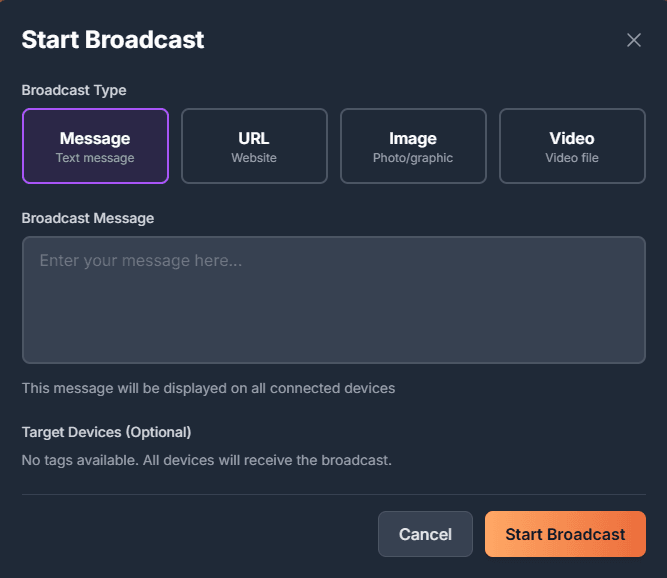
Broadcast button on dashboard
- Choose broadcast type:
- Message: Text message with custom background
- URL: Navigate all displays to a website
- Image: Show an image file
- Video: Play a video file
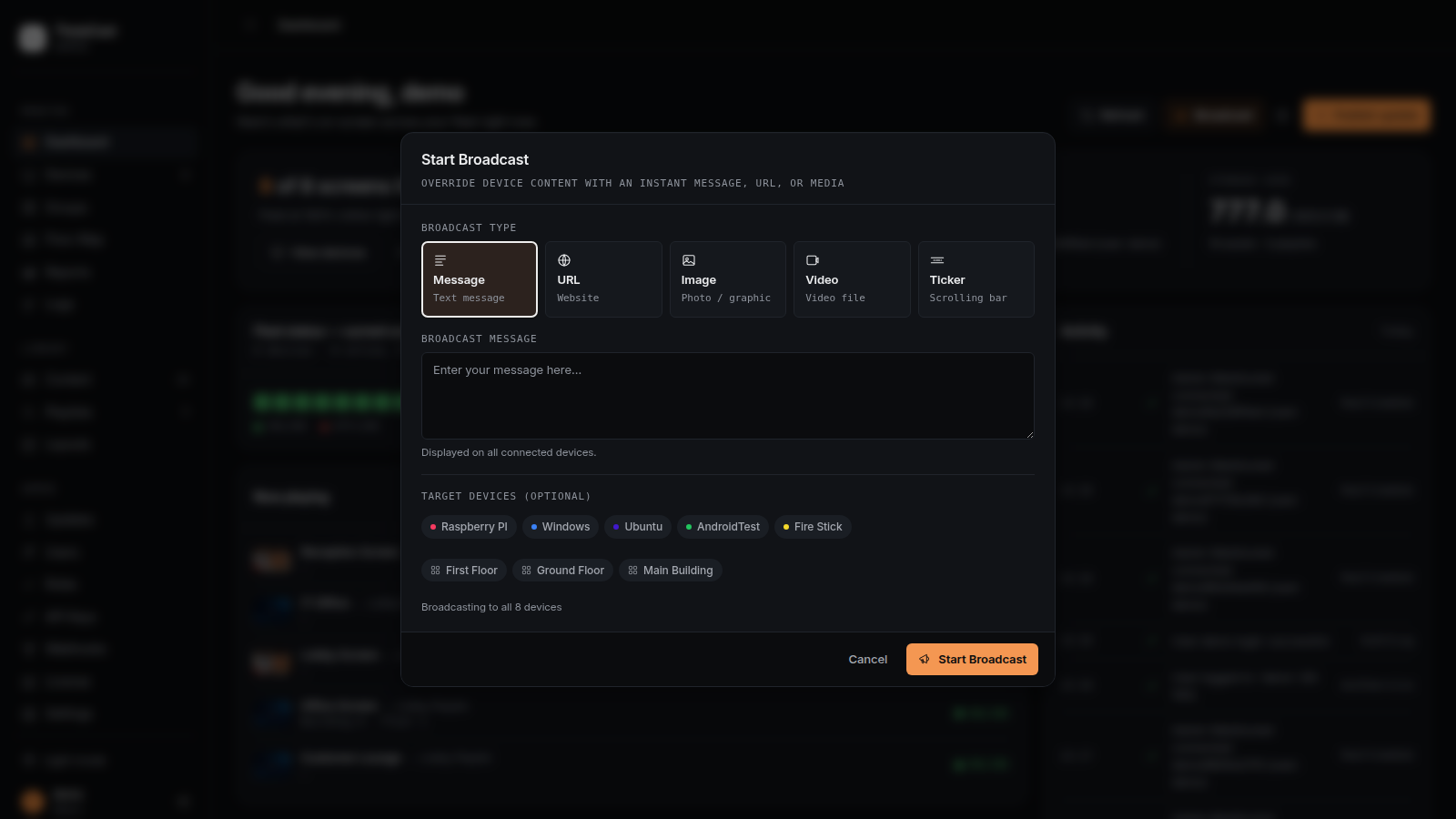
Message Broadcast
Display a formatted text message:
- Select Message type
- Enter your message text
- Click Start Broadcast
All devices will immediately show your message in a styled card.
URL Broadcast
Send all displays to a specific website:
- Select URL type
- Enter the full URL
- Click Start Broadcast
Image/Video Broadcast
- Select Image or Video type
- Upload the file (or select from library if available)
- Click Start Broadcast
Targeting Specific Devices
Filter which devices receive the broadcast:
- In the broadcast modal, expand Target Devices
- Select tags to filter devices
- The counter shows how many devices will receive it
- Click Start Broadcast
Ending a Broadcast
- The Active Broadcast banner shows at top of Dashboard
- Click End Broadcast
- Devices return to their assigned playlists
Screenshot pending for this step.
Remote Control
View and interact with displays in real-time from the dashboard.
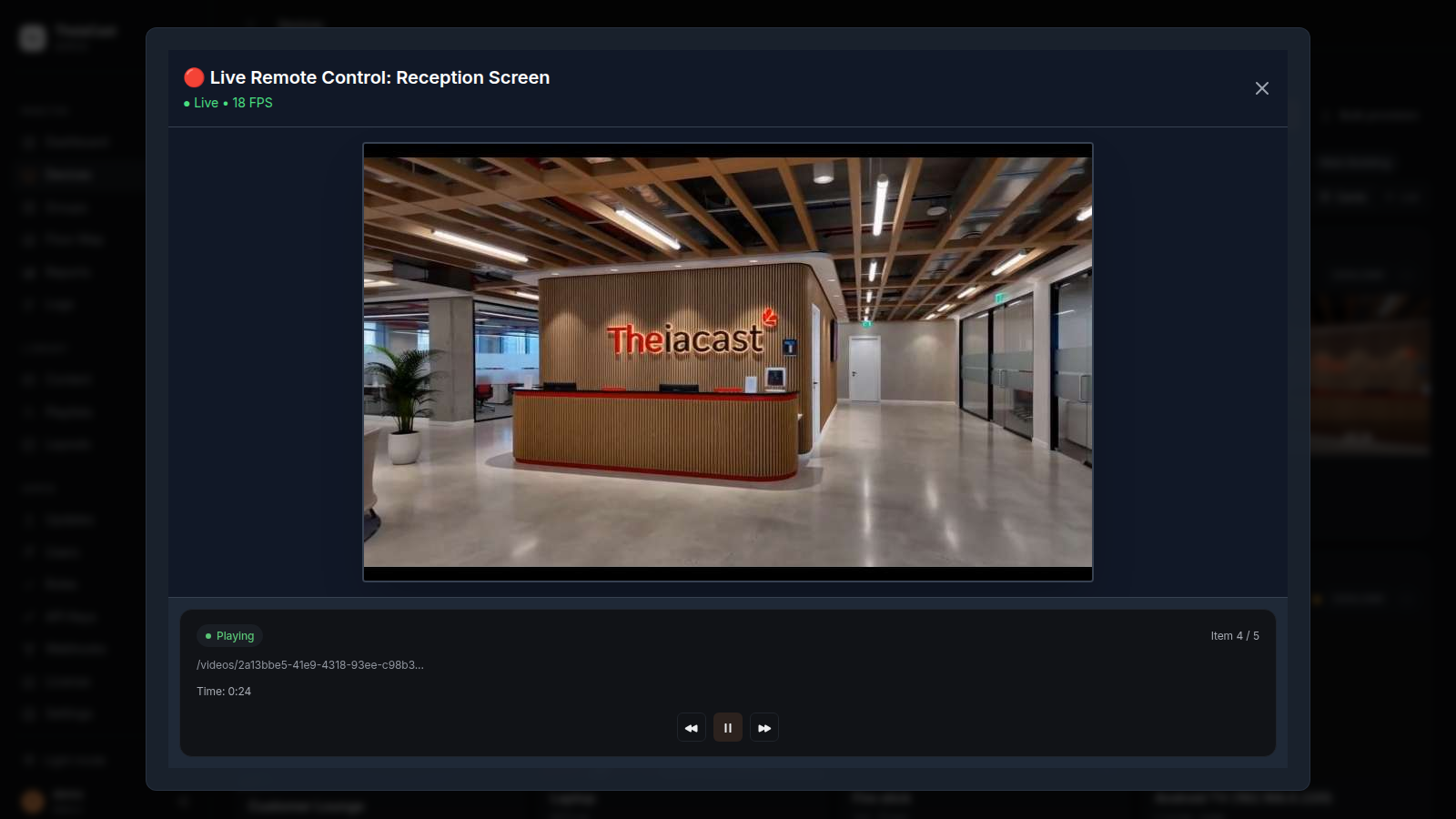
Live Remote Control
The most powerful way to interact with displays:
- Go to Devices
- Click device card → Live Remote
- A modal opens showing live video stream from the device
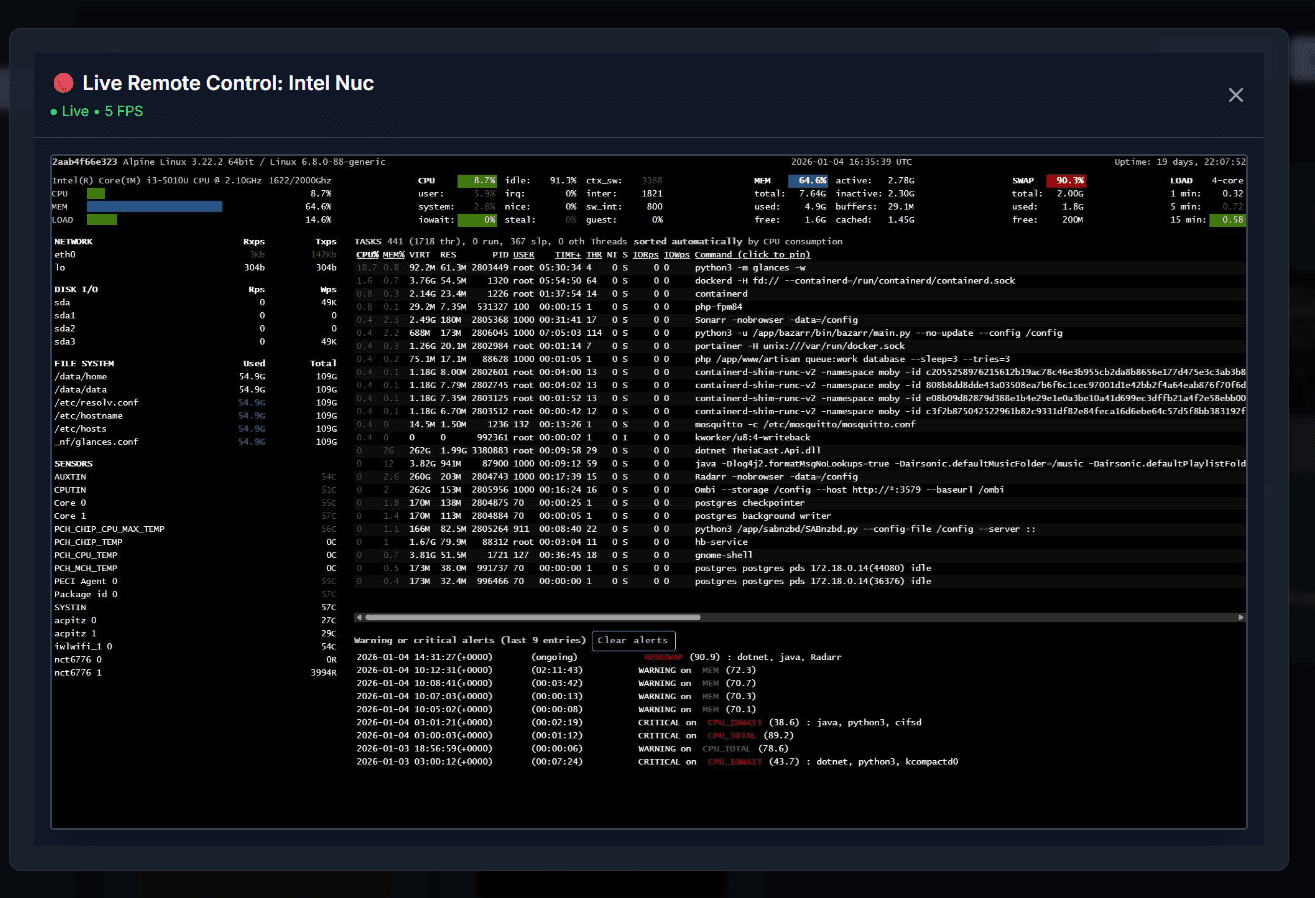
Live remote control modal with stream
Features:
- Live video at 10-30 FPS
- Click anywhere on the stream to interact
- Type directly when focused (click the video first)
- FPS counter shows stream performance
- Connection status indicator
Keyboard Control:
- Click the video to focus it
- "KEYBOARD ACTIVE" indicator appears
- Type normally - keystrokes go to the device
- Perfect for entering passwords or filling forms
Visual Remote Control
Screenshot-based interaction with auto-refresh:
- Click Visual Remote on a device
- Screenshot-based interface loads
- Enable Auto-refresh for continuous updates (every 2 seconds)
Screenshot pending for this step.
Features:
- Click on screenshot to interact at that position
- Keyboard controls sidebar with common keys
- Type text with optional CSS selector targeting
- Refresh page button
- Lower bandwidth than live remote
Basic Remote Control
Simple command interface:
- Click Remote on a device
- Use the control panel:
- Type text: Enter text with optional CSS selector
- Special keys: Enter, Tab, Escape, Arrow keys, F5
- Click coordinates: Send click at X,Y position
- Scroll: Scroll up/down/left/right
Screenshot pending for this step.
Remote Control Use Cases
Website Login:
- Open Live Remote
- Click username field
- Type username
- Click password field
- Type password
- Click login button
Form Filling:
- Use Visual Remote with auto-refresh
- Type in specific fields using CSS selectors
- Send Tab key to move between fields
- Send Enter to submit
Debugging Display Issues:
- Use Live Remote to see exactly what device sees
- Open browser developer tools if needed
- Navigate menus and test interactions
Tags and Organization
Tags help organize devices, playlists, and content into logical groups.
Creating Tags
- Go to Devices page
- Click Manage Tags
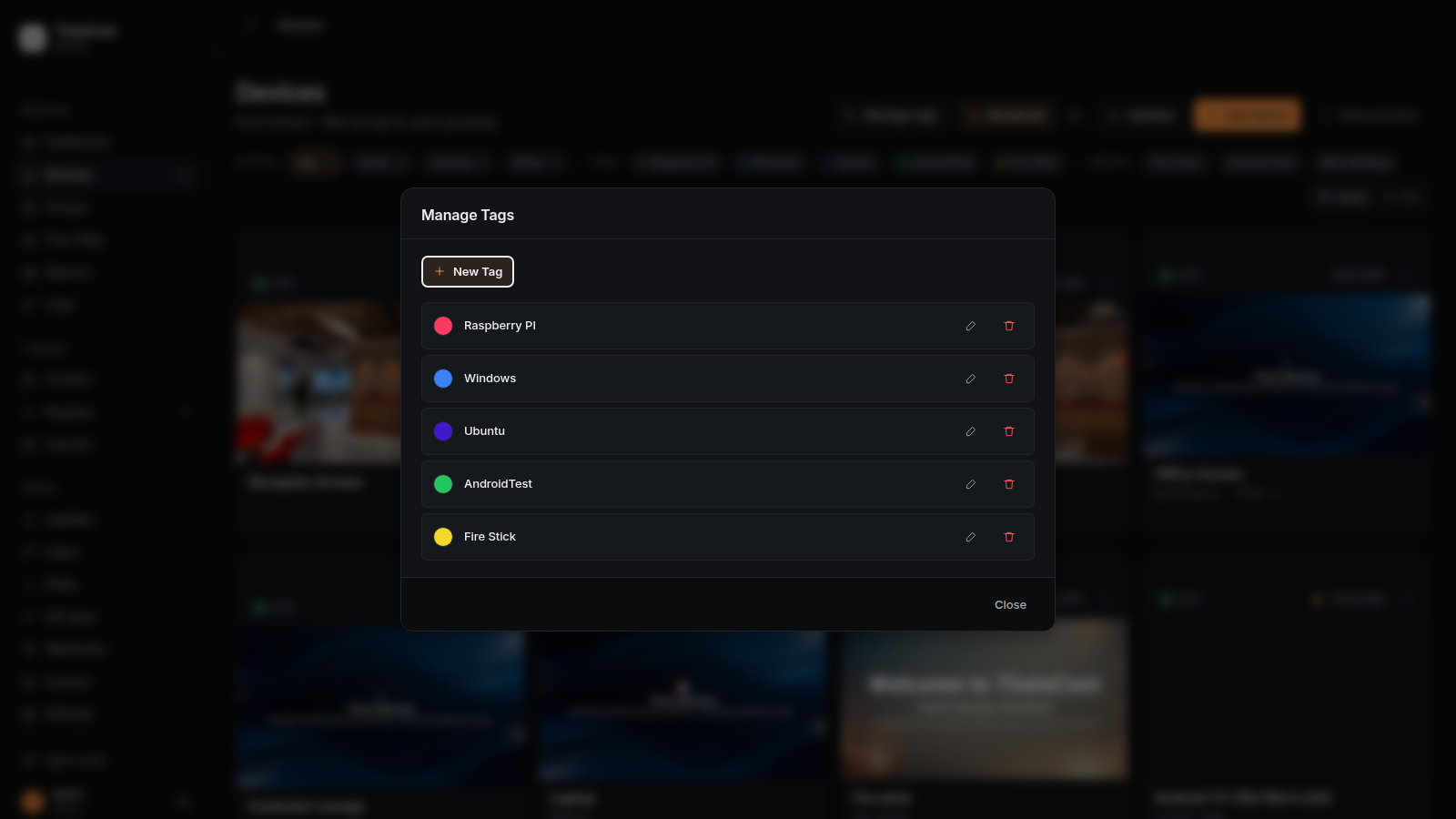
- Click + Create Tag
- Enter tag name and choose a color
- Click Create
Assigning Tags to Devices
- Edit a device
- Select tags from the list
- Save
Or use bulk tagging:
- Select multiple devices (if feature available)
- Apply tag to all
Assigning Tags to Playlists
- Edit a playlist
- Select tags
- Save
Filtering by Tags
On Devices Page:
- Click tag buttons at top to show only tagged devices
- Click multiple tags to show devices matching any of the selected tags (not all of them) — this combines with the Groups filter and status filter, which each narrow the result further
On Playlists Page:
- Use tag filter buttons in the filter card
- Combine with search for powerful filtering
Tag Organization Examples
By Location:
- "Building-A", "Building-B", "Building-C"
- "Floor-1", "Floor-2", "Floor-3"
- "Lobby", "Cafeteria", "Conference"
By Department:
- "HR", "IT", "Sales", "Marketing"
By Purpose:
- "Information", "Wayfinding", "Menu", "Dashboard"
By Schedule:
- "24/7", "Business-Hours", "Weekday-Only"
Monitoring and Logs
Device Health Monitoring
View real-time health metrics for each device:
- Go to Devices
- Click a device card to flip it
- View health indicators:
- CPU Usage: Percentage of CPU in use
- Memory Usage: RAM utilization
- Disk Usage: Storage space used
- Status: Online/Offline
- Last Seen: Time of last connection
Health indicators update every 60 seconds automatically.
Viewing Screenshots
See what's currently displayed:
- Device card shows latest thumbnail
- Click thumbnail for full-size view
- Click Screenshot button for immediate refresh
Screenshot pending for this step.
Automatic screenshots:
- Single-item playlists: Every 30 seconds
- Multi-item playlists: On each rotation
- On-demand: Click Screenshot button
System Logs
View system activity and troubleshoot issues:
- Go to Logs in the sidebar
- Filter by:
- Device
- Log level (Info, Warning, Error)
- Date range
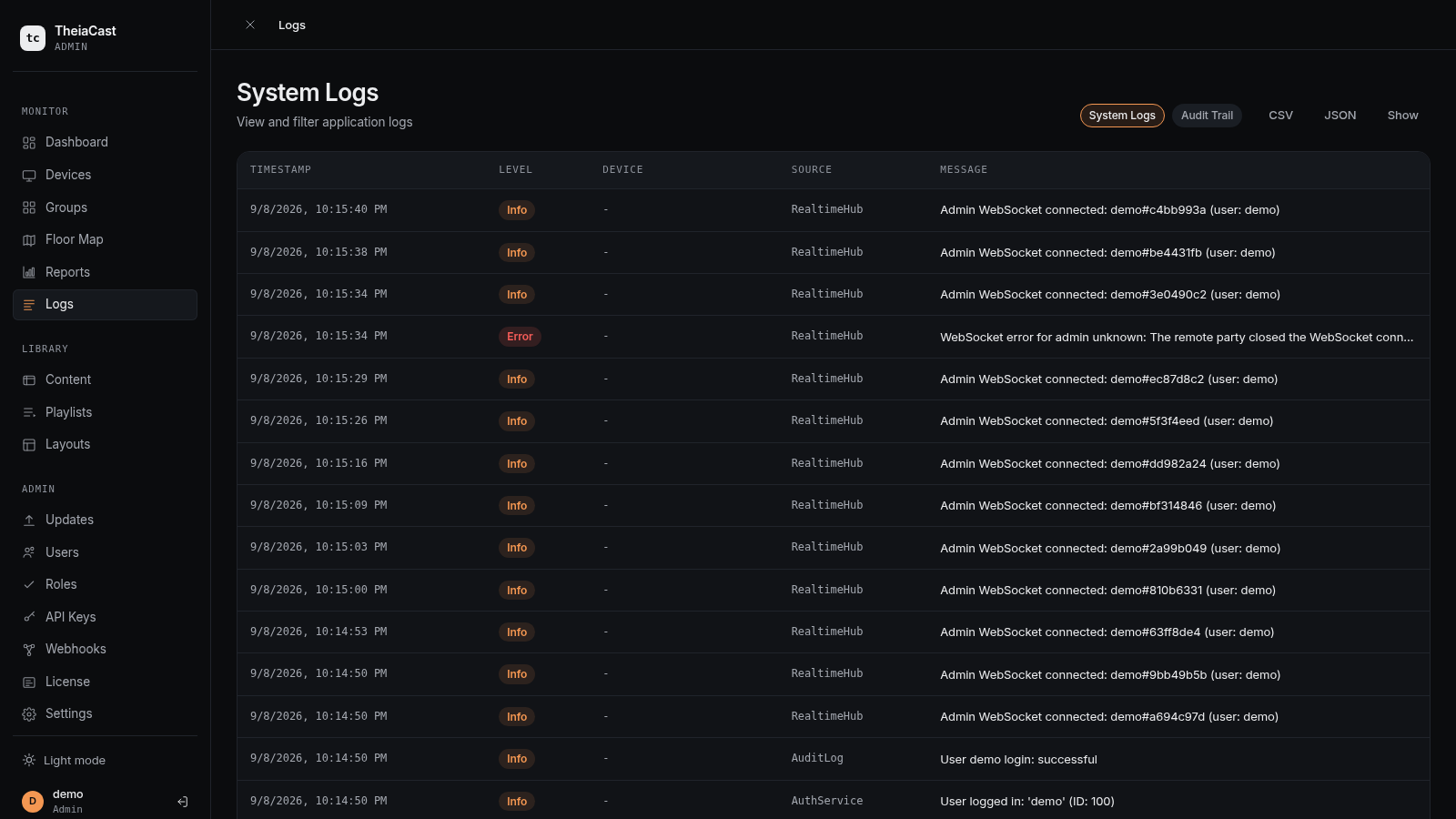
- Each log entry shows:
- Timestamp
- Device name
- Message
- Level/severity
Device Logs
View logs specific to a device:
- Go to Devices
- Click View Logs on a device
- Logs filtered to that device appear
Useful for troubleshooting connection or playback issues.
Offline Email Alerts
TheiaCast can email you when a display stops checking in, so you don’t have to watch the dashboard to catch a dead screen.
How It Works
- A background check watches how long each device has been silent. Once it passes the offline threshold you set, you get one alert email.
- The threshold acts as a debounce — a display that briefly drops and reconnects won’t trigger an alert.
- A device that loses power is caught too: the alert is driven by missed check-ins, not by a clean disconnect.
Turning It On
Alerting and the email connection are configured under Settings → Notifications & Alerts. See the Administrator Guide for recipient addresses, the offline threshold, and choosing a send method (SMTP, OAuth 2.0, or Microsoft Graph).
Tips and Best Practices
Content Organization
- Use descriptive names for all content
- Tag content by category or purpose
- Regularly review and delete unused content
- Keep video file sizes reasonable (under 500MB)
Playlist Management
- Test playlists on one device before deploying widely
- Use meaningful playlist names (include location or purpose)
- Set reasonable display durations (15-30s for most content)
- Use time windows to avoid showing outdated information
Device Management
- Name devices by location (e.g., "Reception-MainLobby")
- Tag devices consistently
- Monitor device health regularly
- Keep devices on stable network connections
Performance Optimization
- Use cached videos instead of streaming when possible
- Optimize image sizes before uploading
- Limit playlist items to 10-15 per playlist
- Schedule content updates during off-hours
Security
- Change default passwords immediately
- Use strong device tokens
- Keep server software updated
- Enable HTTPS for production use
- Restrict network access to server
Keyboard Shortcuts
| Shortcut | Action |
|---|---|
Ctrl+K or / | Focus search (where available) |
Esc | Close modal |
← → | Navigate between items |
Enter | Select/confirm |
Getting Help
- FAQ: See FAQ for common questions
- Installation Issues: Check Installation Guide
- Advanced Config: See Administrator Guide
- Support: https://theiacast.com
- Report Bugs: [email protected]
Next Steps
Read the Administrator Guide for advanced configuration options.