Floor Map
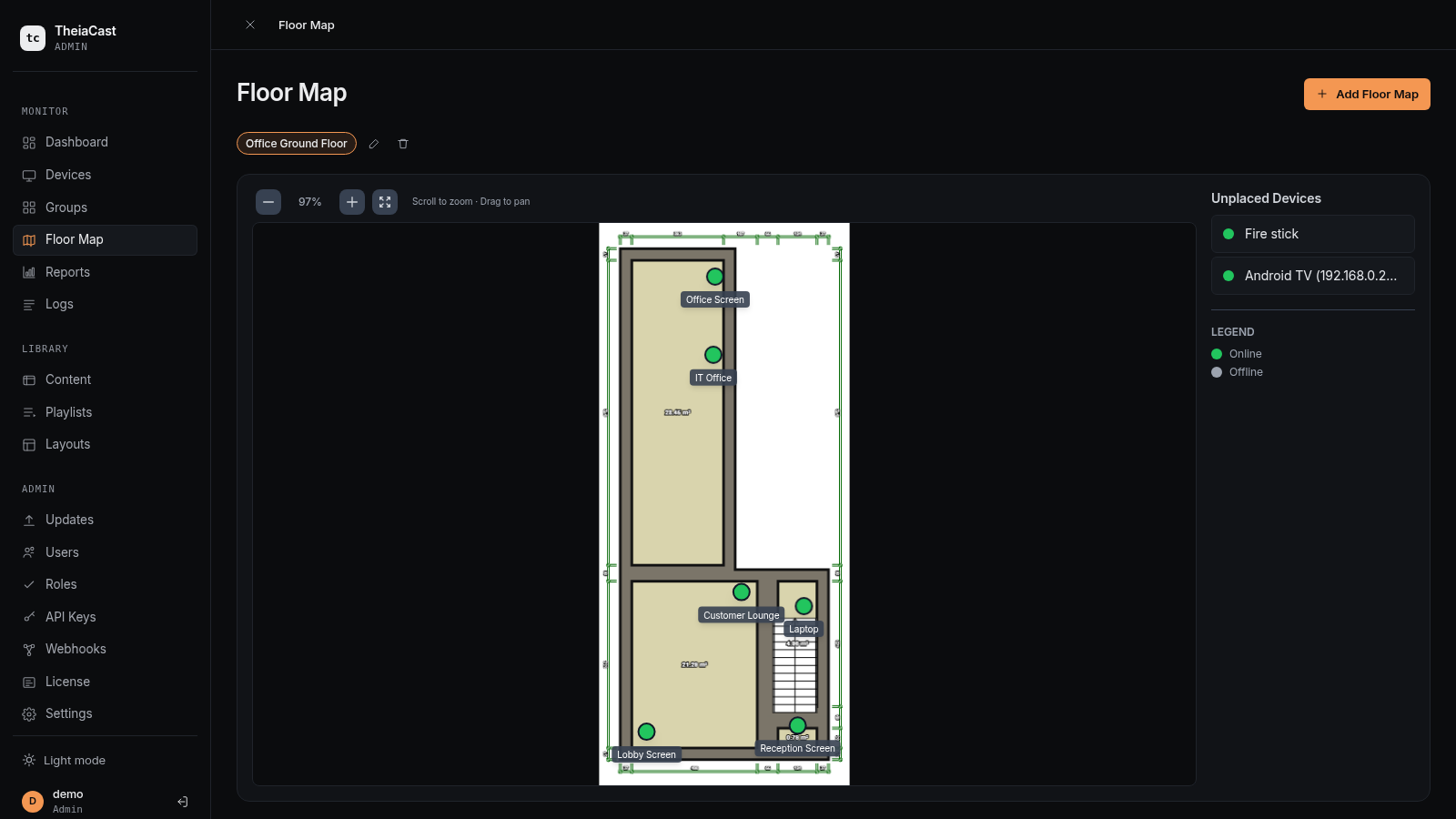
A visual, bird’s-eye view of where your display devices physically live — so an offline screen is “the one in Meeting Room 3”, not a device ID.
Uploading a floor plan
- Open Floor Map in the sidebar and click Upload Floor Plan.
- Select a PNG, JPG, or WebP image of your building or floor plan.
- The image is stored on the server and becomes the map background.
💡 Create a simple floor plan in PowerPoint, Visio, or any drawing tool and export as PNG. Room labels and a sense of scale make the map far more useful.
Placing devices on the map
- Devices appear in a list on the left.
- Drag a device from the list onto the map image.
- Position it where the physical screen is located.
- Repeat for all devices. Drag an icon again at any time to reposition it.
Status colours on the map
| Colour | Meaning |
|---|---|
| 🟢 Green | Device is online |
| 🔴 Red | Device is offline |
| 🟡 Yellow | Device has health warnings |
Why it’s useful
- Instantly spot offline devices by physical location.
- Scales to large deployments spanning multiple floors or buildings.
- Share a read-only map view with facilities teams.
- Faster on-site diagnosis — “the offline screen is in Meeting Room 3”.
Troubleshooting
| Symptom | Cause / fix |
|---|---|
| Map image not showing | Upload failed — re-upload, and check the server has free disk space |
| Device not on map | Not yet placed — drag it from the sidebar list onto the map |
| Device icon in the wrong position | Moved accidentally — drag it back to the correct location |
Need Help?
Email [email protected] for help.
Back to the User Guide