Monitoring & Reporting
Proof of play, screen uptime, scheduled email reports, device groups, offline playback, webhooks, and automatic emergency alerts — everything for keeping an eye on a fleet and getting data back out of TheiaCast.
How this guide fits with the others
This page covers the parts of TheiaCast you use after content is live: proving what played, checking screens stayed online, organising a large fleet, and wiring TheiaCast into your own systems.
- User Guide — content, playlists, scheduling, broadcasts, remote control.
- Administrator Guide — settings, branding, licensing, backups, users.
- Enterprise Setup & SSO — hostnames, HTTPS, Single Sign-On, fleet rollout.
Contents
1. Reports (Proof of Play)
Monitor → Reports. The Reports page covers three related things: Proof of Play (what actually played, on which screen, and for how long — the evidence an advertiser, a compliance team or a tender asks for), Uptime (was the screen even online, independent of what it showed), and Schedules (getting either of those delivered by email on a recurring cadence).
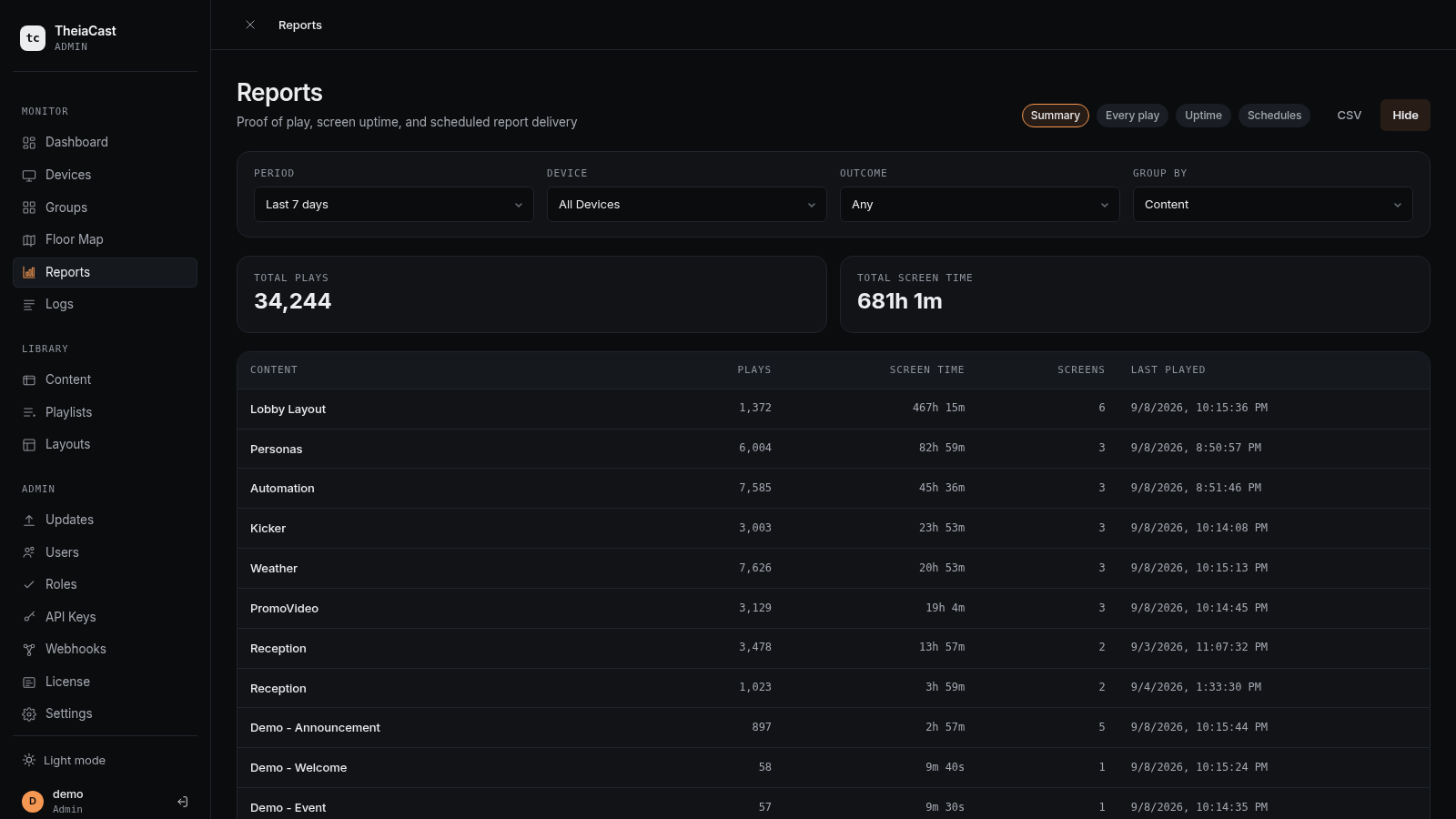
Every time a playlist item finishes on a screen, the player records what was shown and for how long — that is the raw data the Proof of Play views are built from.
What gets recorded
One record per play:
| Field | Meaning |
|---|---|
| Device | The screen it played on |
| Content | The item that was shown |
| Started / Ended | When the play began and finished |
| Duration | How long it was actually on screen |
| Outcome | completed, interrupted or error |
Duration is measured, not assumed. If an item is set to 30 seconds but a time window, an emergency broadcast or a playlist change cuts it short, the record shows the time it was genuinely on screen and the outcome is interrupted. Content name and URL are stored on the record itself, so a report covering last quarter still reads correctly after the content has been renamed or deleted.
Views
- Summary — one row per content item (or per device), with total plays, total screen time and how many screens it reached. This is the view for “how much exposure did this campaign get”. Content that has since been deleted is shown with a deleted tag.
- Every play — the raw record, newest first, one row per play. This is the view for “prove this specific thing ran on this specific screen”.
- Uptime — one row per device, showing how much of the selected period it was actually online. This is a separate data source from plays — see Screen uptime.
- Schedules — where you set up recurring email delivery. See Scheduled email reports.
Filters
| Filter | Notes |
|---|---|
| Period | Today, 7 / 30 / 90 days, or All time. Days are your local days, not UTC |
| Device | A single screen, or all of them |
| Outcome | Narrow to interrupted or error plays to investigate problems. Not shown on the Uptime view |
| Group by | Summary view only — group by content or by device |
CSV export
The CSV button exports every play matching the current filters, not just the page on screen. The file includes device id and name, content id and name, URL, start and end times in UTC (ISO 8601), duration, outcome, playlist ids, and the time the server received the record.
💡 Exports are safe to open in Excel — a content name that starts with = , +, - or @ is escaped so the spreadsheet treats it as text rather than a formula.
Offline screens keep recording
A player that loses its network keeps recording. Play records are written to disk on the device and sent when the connection comes back, so an outage leaves no hole in the report.
- Records from an outage arrive late. The Recorded column in the CSV shows when the server received a record, which is how you tell a backlog from live reporting.
- Each record carries a unique id, so a device that re-sends after an uncertain connection cannot double-count a play.
- A device buffers up to 5,000 unsent records. Past that, the oldest are dropped.
An item left on screen permanently
A playlist with only one eligible item is never reloaded — the player leaves the page up rather than reloading it every rotation. That play is reported in hourly segments rather than one record that only appears when the item eventually changes. So an evergreen screen shows up as one completedplay roughly every hour it stays on that item. Total screen time still adds up correctly across the segments; only the play count reflects the hourly split.
Retention
Settings → Content & Retention controls how long records are kept — 90 days by default, up to 2 years. Cleanup runs hourly.
⚠️ Export before shortening the retention period. Deleted play records cannot be recovered.
Client requirement: playback reporting needs client 1.1.54 or later on the player, and 1.1.55 or laterfor a single permanently-displayed item to report at all. Older players show nothing for that case; update the device and records start appearing within the hour.
2. Screen uptime
The Uptime view answers a different question from the rest of the Reports page: not “what played”, but “was the screen even on and connected”. It is built from connect / disconnect events recorded every time a device’s WebSocket connection opens or closes — not from play records — so it works even for a screen that has shown one evergreen item all week.
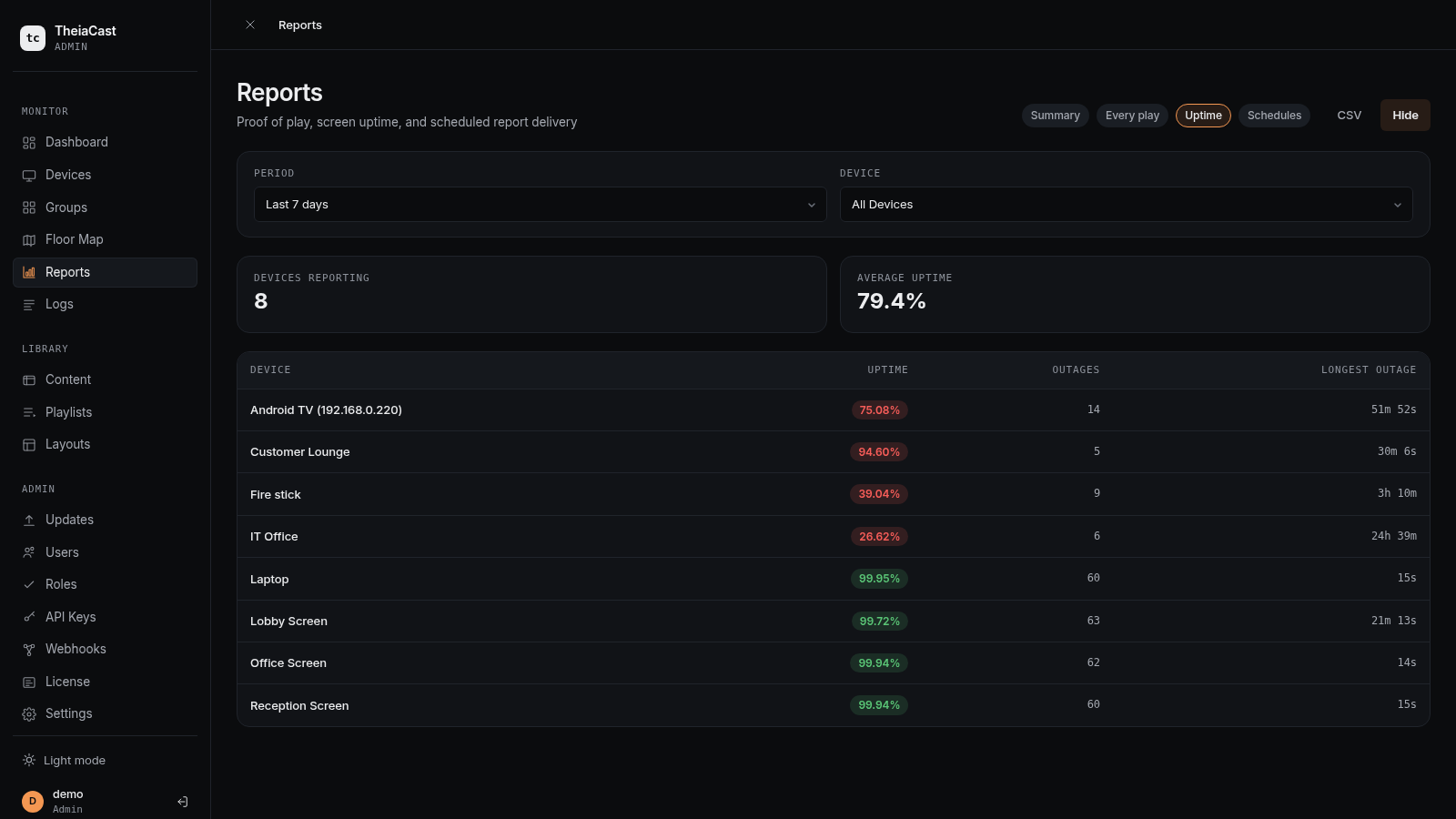
| Column | Meaning |
|---|---|
| Uptime | Percentage of the period the device was connected. Green at 99%+, amber at 95–99%, red below |
| Outages | Number of separate offline periods |
| Longest outage | The single longest continuous offline stretch |
A device with no connection history yet in the selected period is left out of the table entirely, rather than shown as 0% — its status for that period is genuinely unknown, not a real outage. The CSV export includes the same columns plus the device id and the exact period boundaries used for the calculation.
💡 A planned server restart or update is correctly recorded as a brief outage for every screen — the disconnect really happens. A hard crash or power loss on the server is different: nothing has a chance to record “offline”, so an affected screen keeps showing as online until it (or the server) reconnects. This is a known gap, not a bug.
3. Scheduled email reports
The Schedules tab delivers a Proof of Play or Uptime report by email on a recurring cadence, so nobody has to remember to log in and pull it. Click + New Schedule and set:
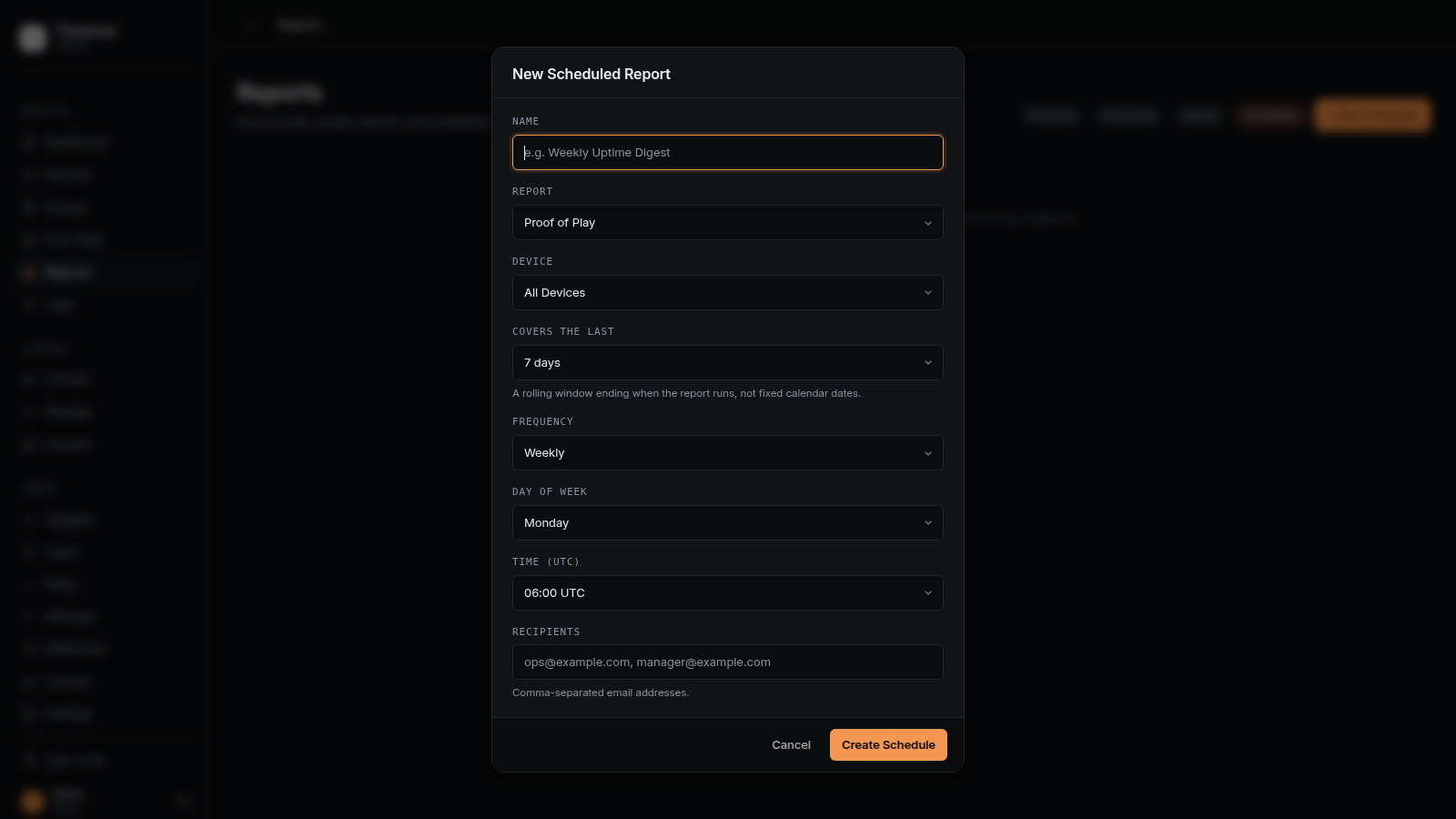
| Field | Meaning |
|---|---|
| Report | Proof of Play or Uptime |
| Device | A single screen, or all of them |
| Covers the last | A rolling window (1 / 7 / 30 / 90 days) ending when the report runs — not fixed calendar dates |
| Frequency | Daily, weekly (pick a day), or monthly (pick a day of month, 1–28) |
| Time | The hour the report runs, in UTC |
| Recipients | Comma-separated email addresses |
- The report arrives as a CSV attachment, identical to the CSV button on the report tabs, with a short summary in the email body.
- Run now sends a schedule immediately without waiting for its real cadence — useful for confirming recipients and filters. This also resets the next-run time the same way a real firing would.
- Disable pauses a schedule without deleting it; Delete removes it permanently.
- A very large Proof of Play export is capped at 20,000 rows for the email attachment (the email says so). Use the full CSV export on the report tab for anything larger — that one has no cap.
Scheduled reports need a working SMTP / Microsoft Graph configuration under Settings → Notifications & Alerts. Send a test email there first if a schedule never arrives.
4. Device groups
Monitor → Groups. Groups let you organise devices by real-world structure — a building, a floor, a region — and then broadcast to or push a playlist across that whole structure at once. They sit alongside Tags rather than replacing them: a group can include devices explicitly or automatically, by tag.
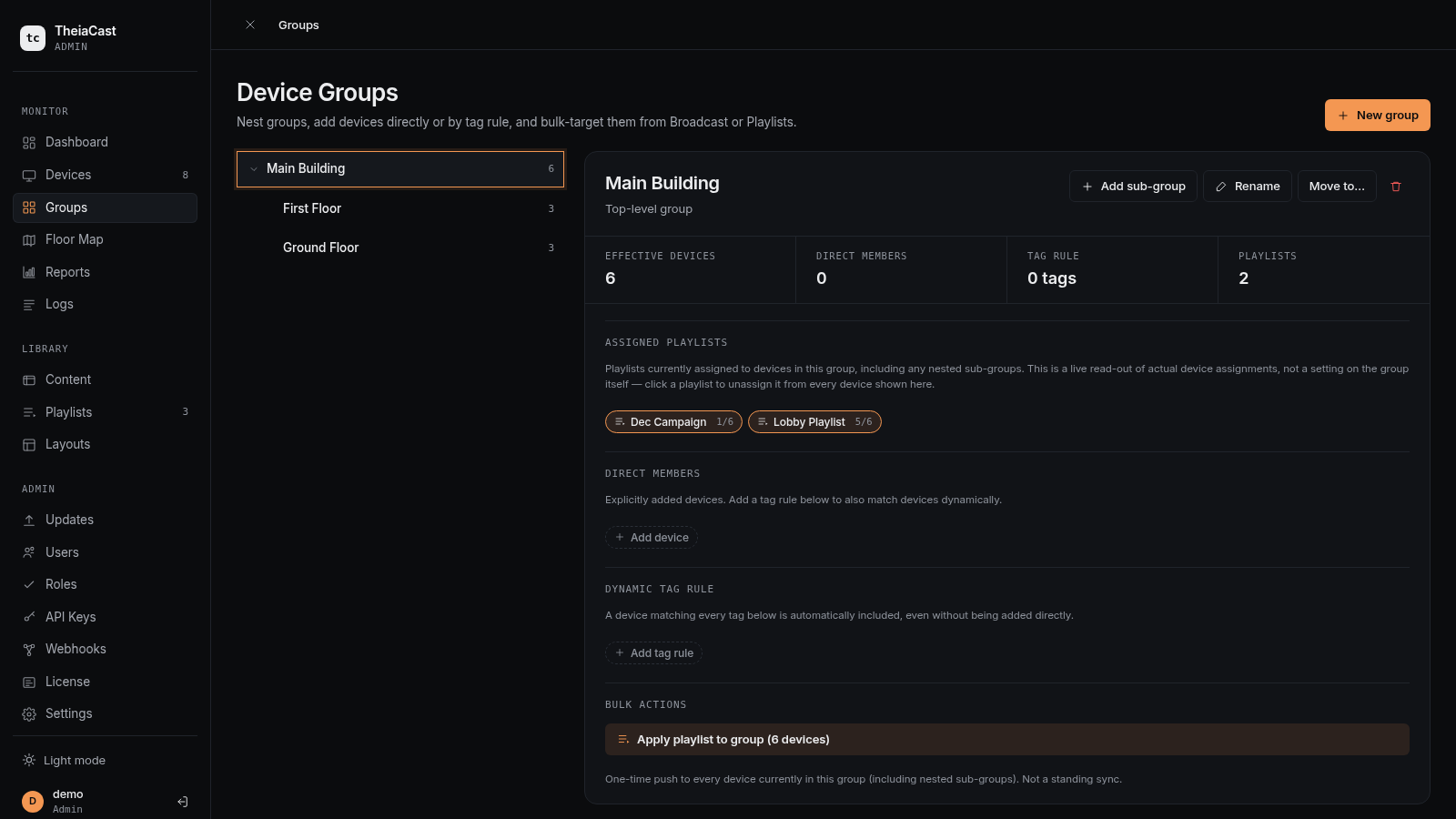
Creating a group
- Click New group for a top-level group, or select a group and click Add sub-group to nest one underneath. Nesting can go as deep as you like — e.g.
Site → Building A → Floor 2. - Rename from the detail panel, or move it elsewhere with Move to…. You cannot move a group into itself or one of its own sub-groups.
- Deleting a group deletes its sub-groups too. Devices themselves are never deleted — only the group and its membership records.
Adding devices — two independent sources
- Direct members — added explicitly from the group’s detail panel (Add device).
- Dynamic tag rule — a group can carry a rule of one or more tags. Any device carrying every tag in the rule is automatically included, without being added by hand.
A group’s effective device count is the union of its own direct members, its own tag-rule matches, and every sub-group’s effective devices, recursively. A device three levels deep still counts toward the top-level group above it.
Using a group
- Broadcast — a Groups row appears alongside the Tags row when starting a broadcast. Select one or more groups (and/or tags) and the broadcast targets the combined set.
- Apply a playlist to a group — from either the Playlists page or the Groups page. This is a one-time push, not a standing rule: a device added to the group afterward does not automatically receive that playlist. Re-run Apply to group to bring new members up to date.
- Filtering — the Devices and Updates pages both have a Groups filter chip row next to the Tags row.
✓ Device Groups is available on every tier — it is not gated behind a paid licence.
5. Offline playback & content caching
Players download the media they need to disk in advance, so a brief network outage or a server restart does not blank the screen.
What is cached
| Content type | Cached? |
|---|---|
| Uploaded images | ✅ |
| Uploaded videos | ✅ |
| PPTX presentations | ✅ (every slide) |
| A direct image/video URL in a playlist item | ✅ |
| Web pages / dashboards (URL content) | ❌ — always live |
| RSS tickers, clock / weather / countdown widgets | ❌ — always live |
Live web content is out of scope on purpose — an arbitrary page is not a single downloadable file, and snapshotting it would not faithfully reproduce what the operator put there. Caching is for the content types where “download once, play locally” is a faithful reproduction.
When content is not available
- Already-cached content keeps playing — a player showing a cached item does not even attempt a live request, so an outage is invisible for anything already downloaded.
- Content that was never cached shows a branded “Content temporarily unavailable” screen instead of a blank tab or a browser error page. Playback resumes automatically once the content is reachable again.
- Deleting a content item removes it from every device’s cache too. A device that is offline at the moment of deletion drops the stale copy the next time it reconnects.
Checking a device’s sync state
Each device card on Devices shows a Cache line once the player has reported at least once, e.g. 9/9 cached or 7/10 cached · 1 downloading · 2 failed. Failed items are shown in red; hover the line for the specific error. A blank Cache line means the device has not sent a sync report yet.
Client requirement: cached image / video / presentation playback and the Cache status line need client 1.1.56 or later. Earlier clients cache video only, keyed by file extension, and will not cache uploaded videos at all.
6. Webhooks
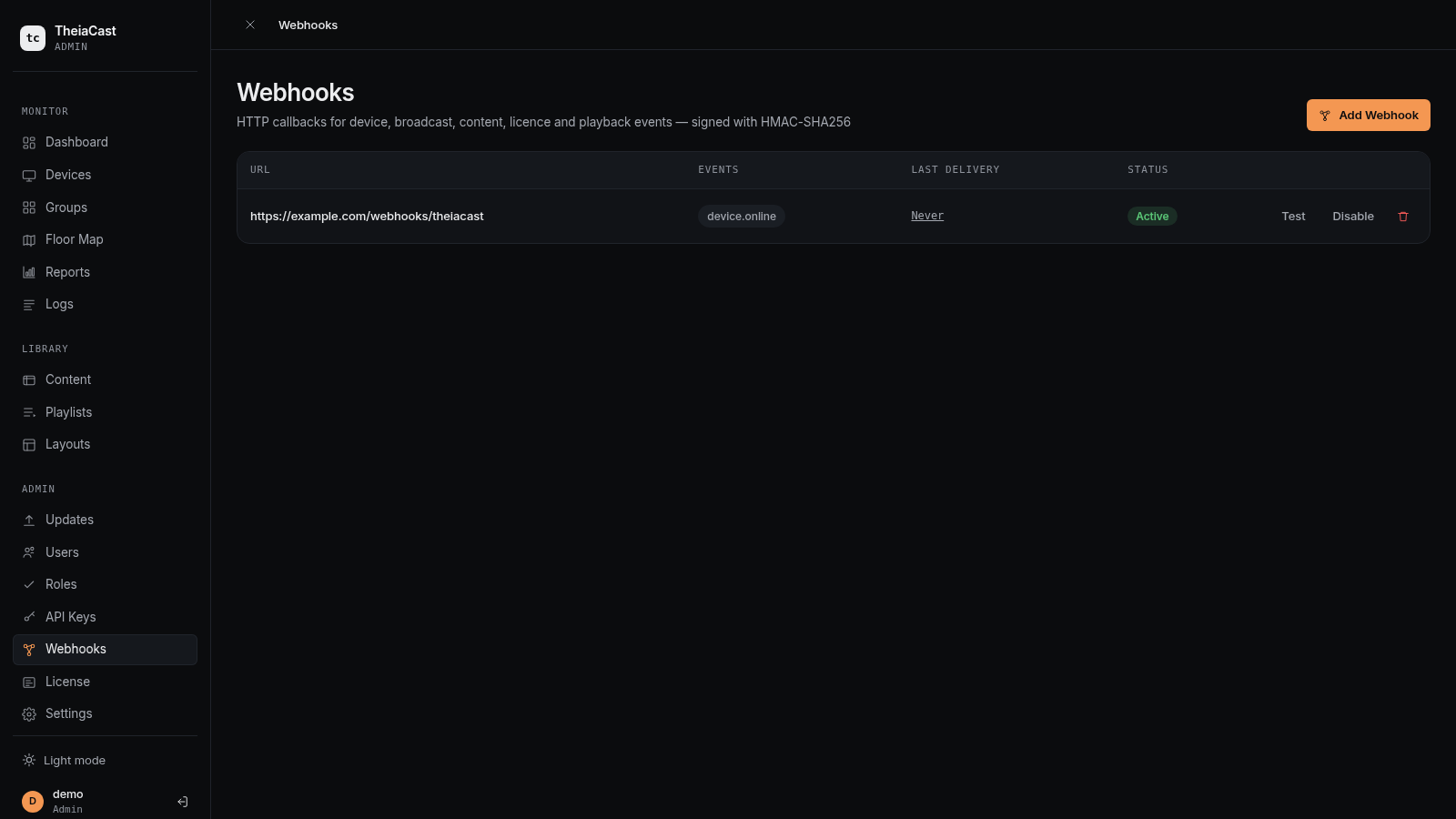
Admin → Webhooks. Webhooks send an HTTP POST to a URL you control whenever something significant happens in TheiaCast — a screen going offline, a broadcast starting, new content being added. Use them to wire TheiaCast into your own alerting, dashboards, or automation without polling the API.
⚠️ Admin role required. Available on every tier.
Adding a webhook
Click Add Webhook, enter the endpoint URL, and select which events to deliver. On creation, TheiaCast generates a signing secret and shows it exactly once — copy and store it securely, the same as an API key. If you lose it, delete the webhook and create a new one.
Events
| Event | Fires when |
|---|---|
device.online | A screen connects (including reconnecting after being offline) |
device.offline | A screen disconnects — including a planned server restart |
broadcast.started | An emergency broadcast / announcement starts |
broadcast.ended | The active broadcast ends (manually, or replaced by a new one) |
content.published | A new item is added to the content library |
license.violation | A licence’s device count exceeds what it allows |
playback.anomaly | A play is recorded with outcome interrupted or error |
Each delivery’s JSON body:
{
  "eventType": "device.offline",
  "timestamp": "2026-09-01T22:15:03Z",
  "data": { "deviceId": "Lobby Screen", "status": "offline" }
}
Verifying deliveries
Every delivery carries X-TheiaCast-Event (the event type) and X-TheiaCast-Signature in the form t=<unix seconds>,v1=<hex HMAC-SHA256>. Recompute HMAC-SHA256 of {t}.{raw request body} using your signing secret and compare to v1. Including the timestamp in what is signed means a captured signature cannot be replayed against a different payload.
const crypto = require('crypto');
const [t, v1] = req.headers['x-theiacast-signature'].split(',').map(p => p.split('=')[1]);
const expected = crypto.createHmac('sha256', SECRET).update(`${t}.${rawBody}`).digest('hex');
if (expected !== v1) throw new Error('bad signature');
Use the raw request body — parsing to JSON and re-serialising before hashing will usually produce a different byte sequence and fail verification even though the delivery is genuine.
Testing, retries & auto-disable
- Test sends a synthetic
webhook.testevent immediately, regardless of subscriptions. - A failed delivery is retried automatically: immediately, then after 1 minute, 5 minutes, and 15 minutes (4 attempts total).
- A webhook that fails 20 deliveries in a row is automatically disabled. Fix the endpoint and click Enable to give it a clean slate (this also resets the failure count).
- Click a webhook’s last delivery timestamp to open its full delivery log.
7. Emergency alerts (CAP)
TheiaCast can poll a Common Alerting Protocol (CAP) feed and automatically broadcast qualifying alerts to screens — a tornado warning, an evacuation notice, a severe weather advisory — without a human pressing Broadcast. This is on top of, not instead of, manual broadcasting.
⚠️ Admin role required. Off by default.
How it works
- TheiaCast polls the configured Feed URL on the configured interval.
- Each entry is checked against your filters: status (real alerts only, unless Drill Mode is on), minimum severity, and an optional area text filter.
- If more than one alert qualifies, the most severe (tiebreaker: soonest-expiring) leads.
- If the leading alert is new or changed, TheiaCast starts a broadcast — replacing whatever is currently on screen, including a manually-started broadcast.
- Once no qualifying alert remains, TheiaCast ends the broadcast automatically — but only if nothing else took over the screen in the meantime. It never ends a broadcast it did not start itself.
- Every alert that triggers or ends a broadcast is written to the audit trail (Admin → Logs, action
cap.alert.broadcast/cap.alert.ended).
CAP-triggered broadcasts also fire the existing broadcast.started / broadcast.ended webhooks, so anything wired to those picks them up with no separate setup.
Feed format
TheiaCast supports two CAP feed shapes:
- Standard CAP-ATOM feeds — an Atom feed whose
<entry>elements carry the alert’s CAP fields inline via acap:XML namespace. This is the self-contained shape used by the US National Weather Service’s public alert feeds (e.g.https://api.weather.gov/alerts/active.atom). - Linked GeoJSON feeds — an Atom feed whose
<feed>element contains a<link rel="related" type="application/vnd.geo+json">pointing to a GeoJSON FeatureCollection of current warnings. This is the shape used by the Met Office NSWWS via Weather DataHub (e.g.https://data.hub.api.metoffice.gov.uk/nswws/v1.1/objects/feed).
Some CAP publishers expose a feed of bare links to a separate full CAP-XML document per alert, requiring a second fetch per entry. That shape is not supported. If nothing ever qualifies, view the feed URL in a browser and confirm the entries either carry cap: fields directly, or link to a GeoJSON FeatureCollection.
Configuring
Settings → Notifications & Alerts → Emergency Alerts (CAP):
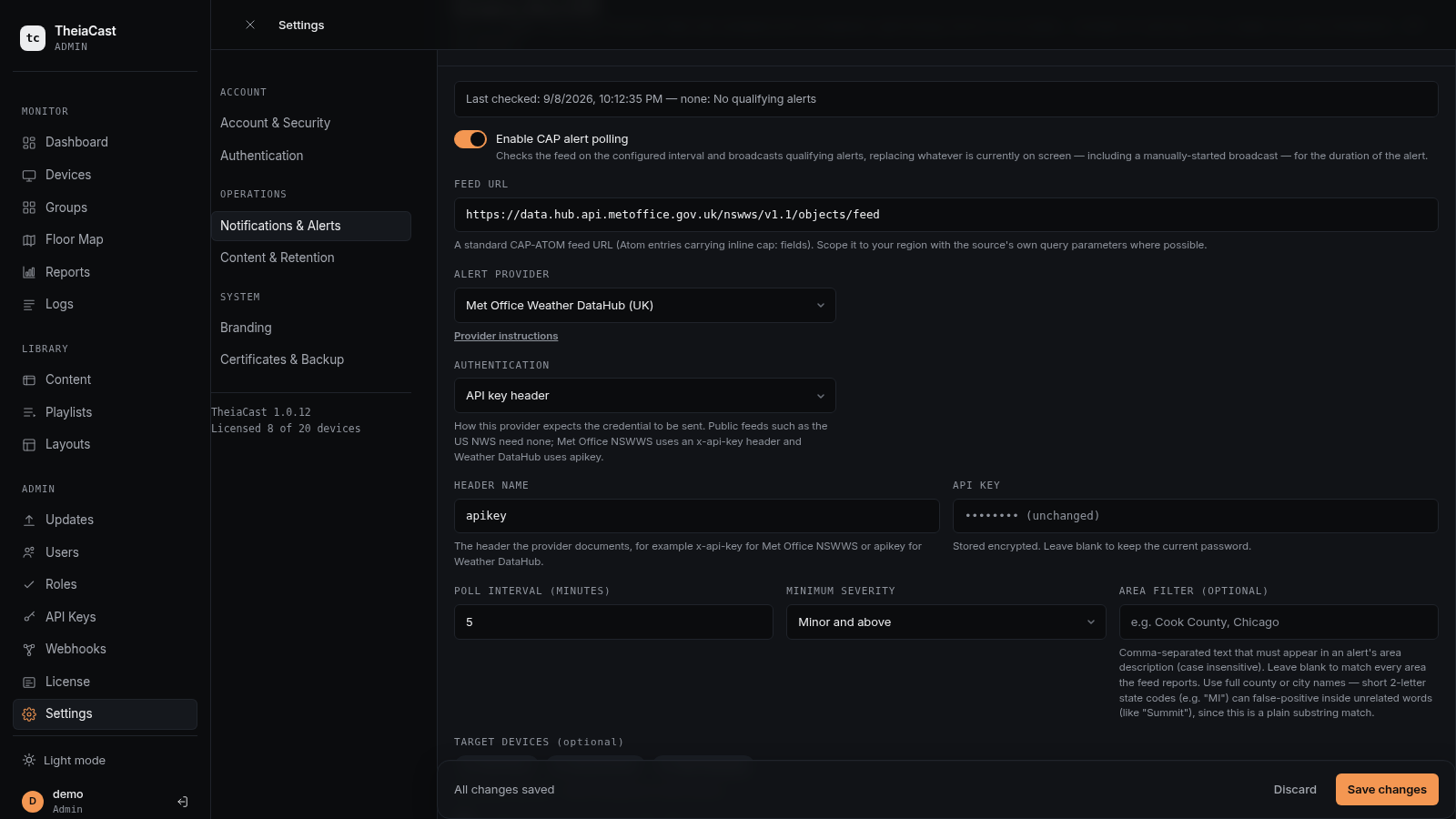
| Field | What it does |
|---|---|
| Enable CAP alert polling | Master on/off switch |
| Feed URL | The CAP-ATOM feed to poll. TheiaCast also accepts Atom feeds that link to a GeoJSON FeatureCollection (e.g. Met Office NSWWS URLs ending in /objects/feed) |
| Alert provider | Preset that fills in the authentication the provider documents (US NWS, Met Office NSWWS / Weather DataHub, MeteoAlarm), or Custom |
| Authentication | How the credential is sent: none, API key header, bearer token, HTTP Basic, or a query-string key |
| Poll interval | How often to check, in minutes (1–1440) |
| Minimum severity | Only alerts at or above this CAP level qualify (Minor / Moderate / Severe / Extreme) |
| Area filter | Optional comma-separated text that must appear in an alert’s area description. Blank matches every area |
| Target devices | Optional device group(s) — none selected broadcasts to every device |
| Drill mode | Also broadcast alerts marked CAP status Test / Exercise. Off by default |
Click Test Feed to fetch the feed right now and see exactly what would currently qualify under your saved filters — a safe dry run that never broadcasts anything. It uses whatever is currently typed into the form, so a new API key can be verified before it is saved.
Authenticated feeds
CAP is only a message format — each publisher picks its own transport authentication. Public feeds such as the US National Weather Service need none; national met services generally issue a per-subscriber API key. The Met Office NSWWS Atom feed expects the key in an x-api-key header, and Weather DataHub expects apikey; MeteoAlarm uses a bearer token. Choose the matching Authentication mode (the header and query-parameter names are editable for anything else) and paste the key.
The key is encrypted at rest, is never returned by the API or written to the audit log, and is deleted if Authentication is set back to None. A rejected key (401/403) or rate limit (429) is reported explicitly by Test Feed and in the poll status.
The area filter is a plain, case-insensitive substring match — not geocoding. Full county or city names work well (“Cook County”, “Chicago”). Short 2-letter state codes false-positive inside unrelated words — a filter of MI for Michigan also matches “Summit”. Use full names, not abbreviations.
Troubleshooting CAP alerts
| Symptom | Cause / fix |
|---|---|
| Test Feed reports HTTP 404 | The feed URL is incomplete or incorrect. Met Office NSWWS feed URLs end in /objects/feed. |
| Test Feed reports 401/403 | Wrong API key or wrong header/parameter name. Re-check the provider docs: NSWWS uses x-api-key, Weather DataHub uses apikey, MeteoAlarm uses Bearer. |
| Test Feed returns 0 entries | There are no active warnings, or the feed is not a supported shape. The feed must be CAP-ATOM with inline cap: fields, or an Atom feed that links to a GeoJSON FeatureCollection. |
| Alerts from the wrong area appear | Area filter text is too short or ambiguous. Use full county or region names, not 2-letter abbreviations. |
| A CAP alert replaced a manual broadcast | Working as intended. CAP alerts take priority; restart the manual broadcast once the alert clears if still needed. |
8. Teams Relay
Teams Relay re-broadcasts a live Microsoft Teams meeting or Town Hall to selected — or all — screens, full-screen, overriding whatever those screens are currently showing until you stop it. It uses Teams’ own RTMP-Out (“Custom Streaming”) feature to get the meeting’s video out — TheiaCast never joins the meeting itself, and this works with both regular meetings and Town Hall/events (not the legacy “Live Events” product, which Microsoft retired).
One-time Microsoft 365 admin step required first. A tenant admin must turn on live streaming: Teams admin center → Meetings → Meeting policies → the relevant policy → Audio & video → Live streaming → On. See Microsoft’s own docs: Allow live streaming with RTMP-Out.
Microsoft 365 licence requirement. Microsoft doesn’t publish an explicit licence-tier table for RTMP-Out, but real-world testing found it gated in practice: on a Microsoft 365 Business Premium-only tenant, the organizer saw “You don’t have streaming permissions” even with Live Streaming already turned on. Assigning an Enterprise-tier licence (E3 or higher) to the organizer resolved it.
How it works
- From Devices → Teams Relay, pick a target (tags/device groups, or leave both empty for every device) and click Start Relay.
- TheiaCast generates a one-time RTMP Server URL and Stream Key and displays them — hand these to whoever is running the Teams meeting.
- In the meeting, they add the Custom Streaming app and paste in the Server URL and Stream Key.
- Once Teams starts streaming, targeted screens switch to the meeting automatically and the status changes from Waiting for Teams to connect to Live.
- Normal playlist rotation is paused, not lost, and resumes exactly where it left off once you click Stop Relay.
A device that was offline when the relay started picks it up automatically as soon as it reconnects. If Teams’ stream drops momentarily, the status shows Dropped but targeted screens keep waiting rather than reverting — this is usually temporary. Only one session can be active at a time; starting a second one shows who started the first and offers to take over rather than silently replacing it. A session that never actually connects self-expires after 30 minutes.
The RTMP Server URL and Stream Key are shown only once, right after starting — if you didn’t copy them down and need them again, stop the session and start a new one.
9. Troubleshooting
| Symptom | Cause / fix |
|---|---|
| No plays for a device | Player older than 1.1.54, or it has not rotated since being updated |
| No plays for a single-item playlist | Player older than 1.1.55 — see “An item left on screen permanently” |
| Plays appear minutes late | Normal for a device that was offline — records are sent on reconnect |
| Fewer plays than expected | Plays under 1 second are not recorded — they are navigation noise, not exposure |
| Content shows as deleted | The content item was removed; the report keeps the name it had when it played |
| Device missing from the Uptime table | No connection history yet for the selected period |
| Uptime shows a brief outage right after a server update | Expected — a planned backend restart genuinely disconnects every screen for a few seconds |
| A scheduled report never arrived | Check the schedule is Active, and that Settings → Notifications & Alerts has a working SMTP / Graph config — try Send test email |
| Webhook signature does not verify | Hash the raw request body, not a re-serialised version |
| Webhook shows “Auto-disabled” | 20 consecutive deliveries failed — fix the endpoint, then click Enable |
| CAP: nothing ever broadcasts | Feed has no qualifying alert, severity threshold too high, or area filter too narrow — click Test Feed |
| CAP: Test Feed says the feed rejected the API key | Wrong key or header name — NSWWS is x-api-key, Weather DataHub is apikey |
| CAP: Test Feed reports 0 entries parsed | Feed is not the supported CAP-ATOM shape, or the URL is wrong |
| CAP: a drill alert reached a live screen | Drill Mode was left on — turn it off once testing is done |
| Teams Relay: “You don’t have streaming permissions” | Confirm the tenant’s Live Streaming policy is On for the organizer’s actual effective policy (the admin center can show “Global” while a different system policy is really assigned), and that the organizer has an Enterprise-tier (E3+) Microsoft 365 licence — a Business Premium-only tenant can be blocked even with Live Streaming on |
| Teams Relay: a reconnected device stays on its normal playlist | Start relays to screens that are already on and connected — a device that reconnects mid-relay can time out loading the continuously-updating live page on some client builds; restarting it again usually clears it |
Need Help?
Email [email protected] for help.